Appearance
AI-suggested email outline
At the core of AI-powered interactive email generation is a textual outline. It provides a framework for structuring information and organizing content across components and blocks within the selected template.
eVa AI follows a step-by-step guided flow when generating an interactive email outline. If the initial prompt is insufficient, it asks clarifying questions about brand, product, target country, audience, communication goal, and language.
The outline is generated in the communication language by default. You can also specify the outline language directly in the prompt.
To create the outline, the Content generation agent analyzes your request and uses documents from the client-specific knowledge base or those added with the Assets popup. The documents provide the basis for the outline and additional context. The agent also uses claims to enhance the email outline with approved statements when the claims library exists in Veeva Vault PromoMats. If the required information is missing or only partially available, the agent notifies you, doesn't generate the email outline, and suggests possible next steps.
The outline either appears in the chat for review or is used immediately to generate the email without being displayed. Serving as an email draft, it ensures all statements are traceable to verified sources, maintains regulatory compliance, and streamlines content reuse.
eVa AI also supports persona-driven content generation. In this scenario, user-facing and underlying outlines are tailored to a target audience to enhance message relevance, align communication with specific goals, and reduce manual effort for content customization.
Contact your administrator to configure:
Guided email outline generation and mandatory clarification criteria.
Email outline generation using knowledge base documents and assets, filtered based on the metadata specified in your prompt.
Using claims to enhance email outlines.
Personalized email outline generation.
The outline can specify:
Structural sections of the interactive email.
Buttons and other elements.
Style and formatting guidelines.
To generate the interactive email outline, you can:
Request information, texts, images, and documents, or add them with the integrated Assets popup, then generate the outline from AI suggestions, uploaded assets, or both.
Assets suggested by the eVa AI agent are not automatically included in the generated outline. You can manually add texts to your outline. For this:
Paste the previously generated outline in the input field.
Insert the required texts in the appropriate places within the outline.
Request the eVa AI agent to regenerate the outline.
You can also select specific texts and regenerate the outline with them. The Content generation agent automatically inserts selected texts and claims into the most relevant sections while preserving their original wording.
Provide required details in your prompt to generate the outline immediately.
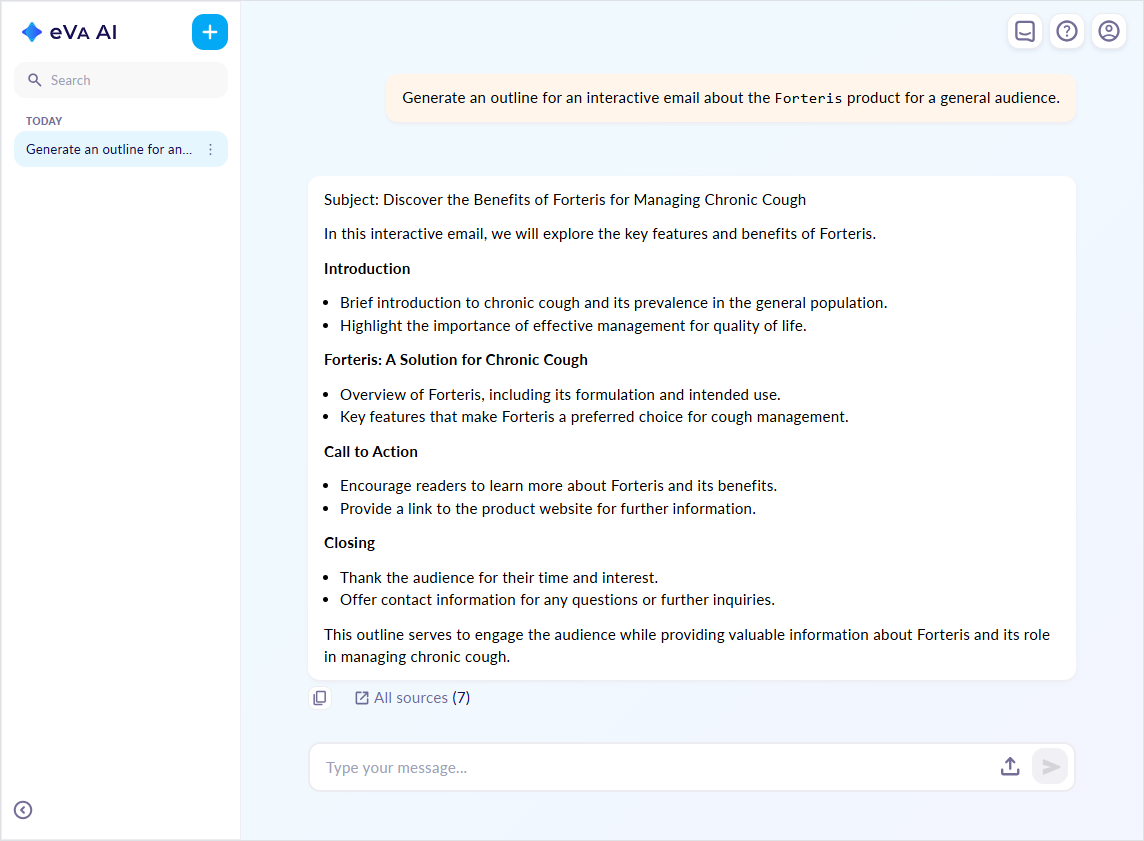
To generate a persona-tailored outline, specify a target audience in the prompt.
- Request updates for any part of the generated outline if required.
eVa AI always uses the most recent outline from the chat to generate the interactive email.
During outline creation, the Content generation agent leverages documents for direct content extraction or consults them for context. As a result, the All sources list can include any content stored in your knowledge base. These preliminary references serve as an informational trace but are not final. When generating an interactive email from the outline, the agent replaces them with approved and verifiable documents allowed in the reference list, ensuring that all claims are properly supported.
Contact your administrator to configure the following:
Maximum number of documents in the reference list for the generated email outline.
Marking for AI-generated email outlines.
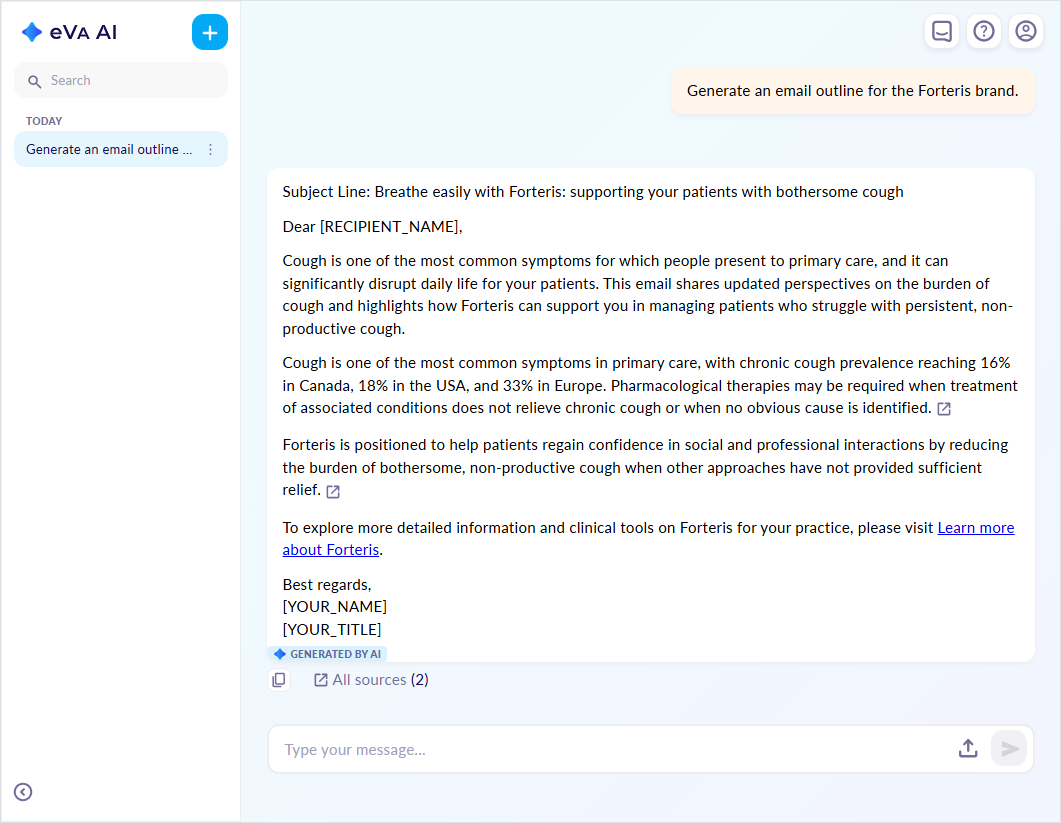
Source referencing and navigation
When eVa AI generates an email outline, it automatically connects each statement to the source document it was based on. This allows you to verify the origin of the generated statement and review the original source documents directly.
Once the Content generation agent creates an outline in the conversational hub or in Editor, the  button appears next to the statement. The
 Open source button is displayed for all AI-generated outline statements where source documents are available.
Click the Open source button next to the statement to open the source details popup with the document name, the specific page number, and text used by the agent for the outline statement generation.
When the generated outline contains a list of statements, all sources are linked to the final statement in the list.
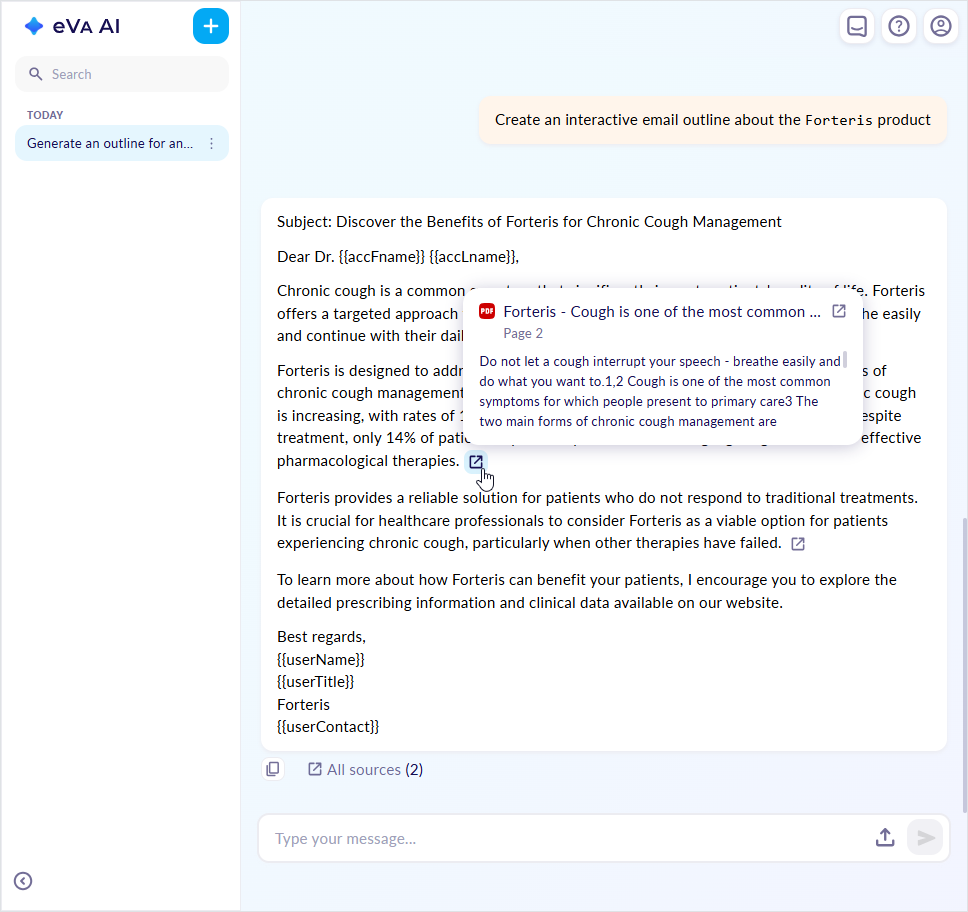
In the source details popup, you can do the following:
Scroll through the text the agent consults to generate the outline statement.
Navigate between source document pages if an AI-generated statement is based on several source document texts. For this, use the
<and>buttons at the bottom of the popup.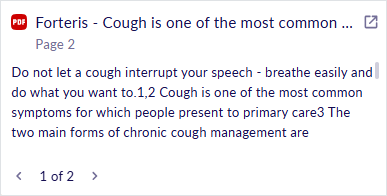
Open the source document with the
button next to its name. The preview opens as follows:In Veeva Vault PromoMats for source documents opened from the conversational hub and Editor.
In the right sidebar of the conversational hub if the VVPM link is unavailable and the knowledge base document is opened. Here, you can:
Open the source document as a PDF file in a new browser tab with the
button.Scale the source document preview with the
-and+buttons.Navigate between the source document pages with the arrow buttons.
Close the preview with the
xbutton.
In a new browser tab as a PDF file if the VVPM link is unavailable and you open the source document from the eVa AI chat in Editor.