# Call flows
To work with scenario-based presentations, use call flows. It is a combination of slides from different presentations that are available in the e-Detailers section.
The call flows can be published to the Remote call service and used in remote calls.
To get to the Call Flows page:
Unfold the burger menu [1].
Select
Call Flows[2]:
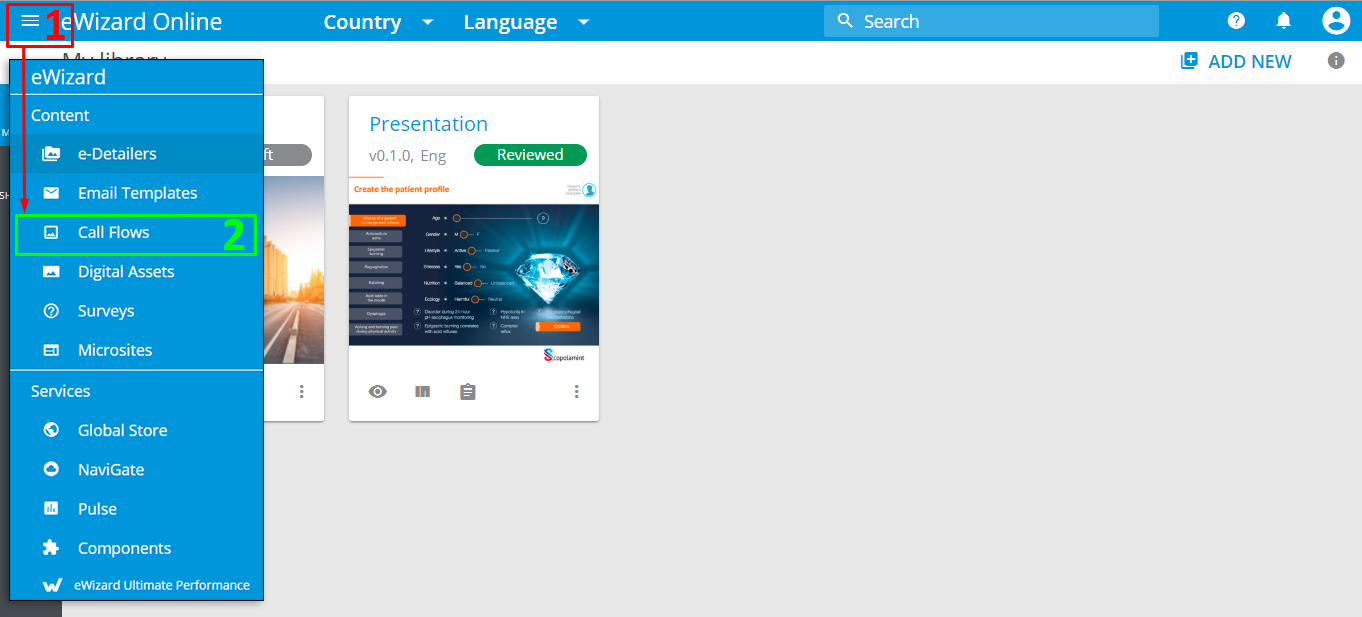
The Call Flows page opens:
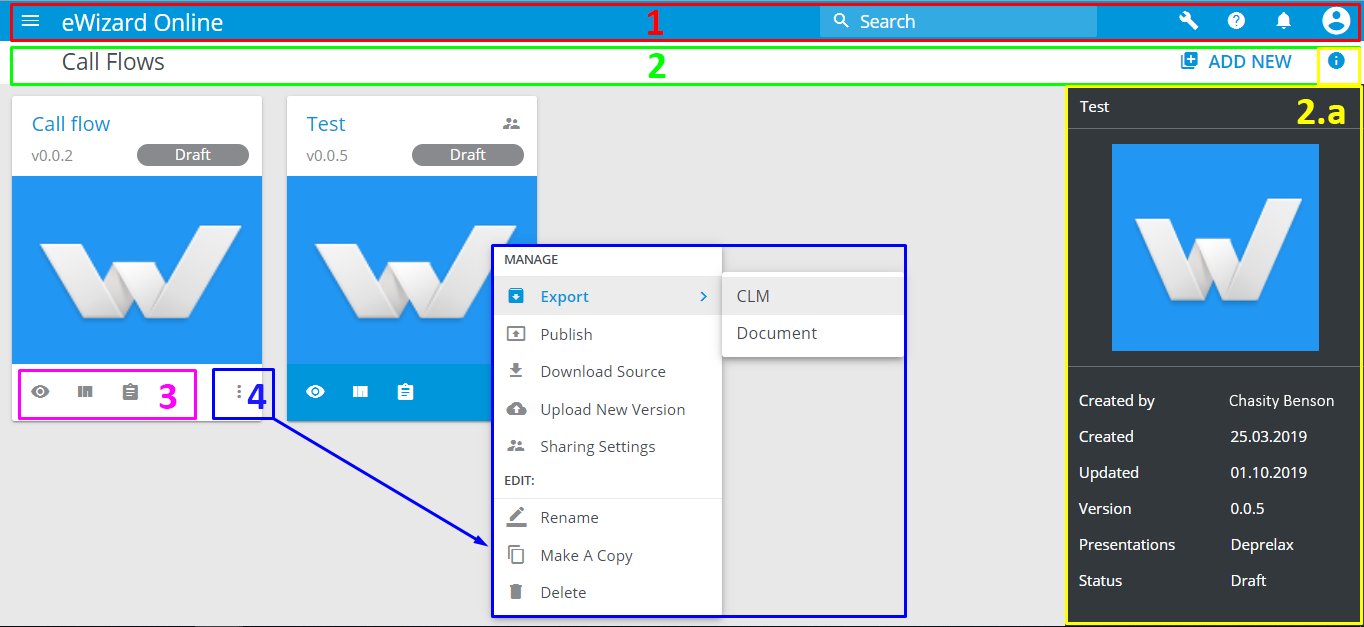
1 - The header comprises the following:
 to navigate between sections
The Search field to find the required call flow faster
 to access the Admin panel
 to open User guide, Knowledge base and Service desk
 to review the last notifications
 to open the Profile menu
2 - The subheader contains the following:
The name of the section
The ADD NEW button
 - 2.a - the detailed information about the call flow selected
3 - actions with the call flow:
 opens the preview mode
 opens the call flow's editor
 opens the details page of the call flow
4 -  unfolds the following options:
| To… | Click… | Result |
|---|---|---|
| Make an item compatible with your target system and available for upload | Export | You receive an email with the link to download the item's build |
| Pass an item to the target system or your company's public access | Publish | The item is published |
| Download an item as it is | Download Source | A file is downloaded to your device |
| Bring an item up to date | Upload new version | Your item is up to date; its version's central digit is one-up |
| Share an item with someone outside your Company | Sharing Settings | The item is shared with your target person |
| Change item's name | Rename | The item is renamed |
| Copy an item | Make a Copy | The copy of your item is in the Library |
| Remove an item | Delete | The item is no more available. You can find it in the Deleted space |
# Operations with call flows
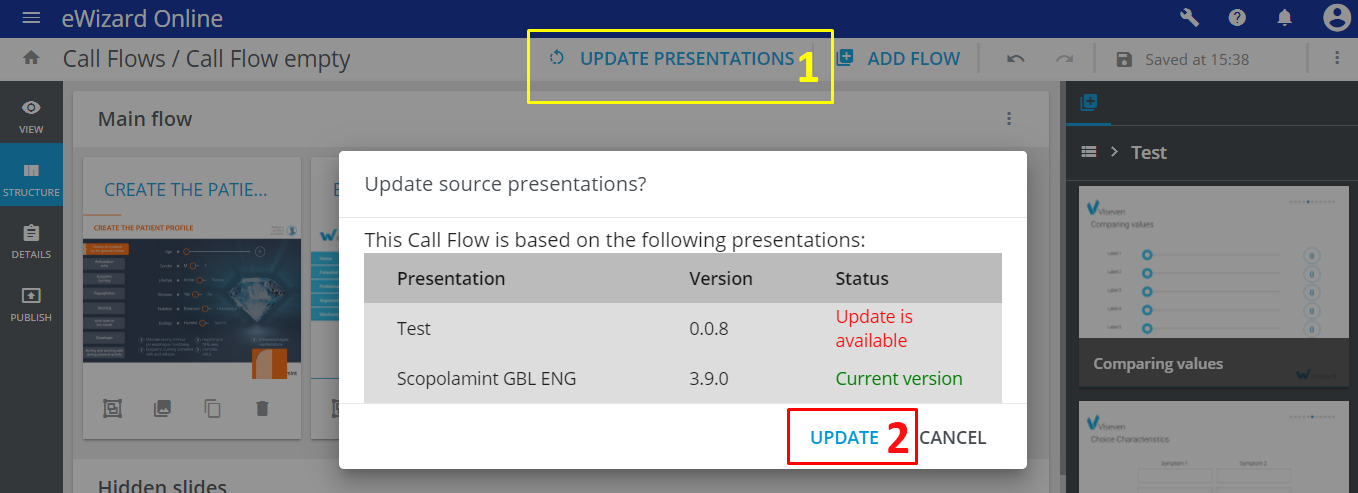
If the source presentation is changed, this does not impact the slides in your call flow.
To update the slides in the call flow with the changes made:
- Click
Update Presentations[1]. - Click
Update[2].
# Special slides
eWizard allows for inserting special slides to a call flow. Users can insert a single slide, aka. a hot slide and a group od slides called a dynamic group.
# Hot slides in call flows
When you are navigating through the call flow, you can show some information independently of the predefined order of your slides. For this, add a hot slide to your call flow to display additional information that does not go with the main flow of the presentation. The hot slide does not require any particular arrangement and can be partially or fully skipped if needed.
# Dynamic groups in call flows
A Dynamic group is like a small presentation inside a slide. You can follow the general flow of your call flow and show only the main slides of a call flow, or you can take the more detailed path and go through all of your main slides, visiting content on those sub slides as well. For this, add a dynamic group to your call flow.
Dynamic groups allow you to show extra information in the sequenced way when you need it.
# Call flow details
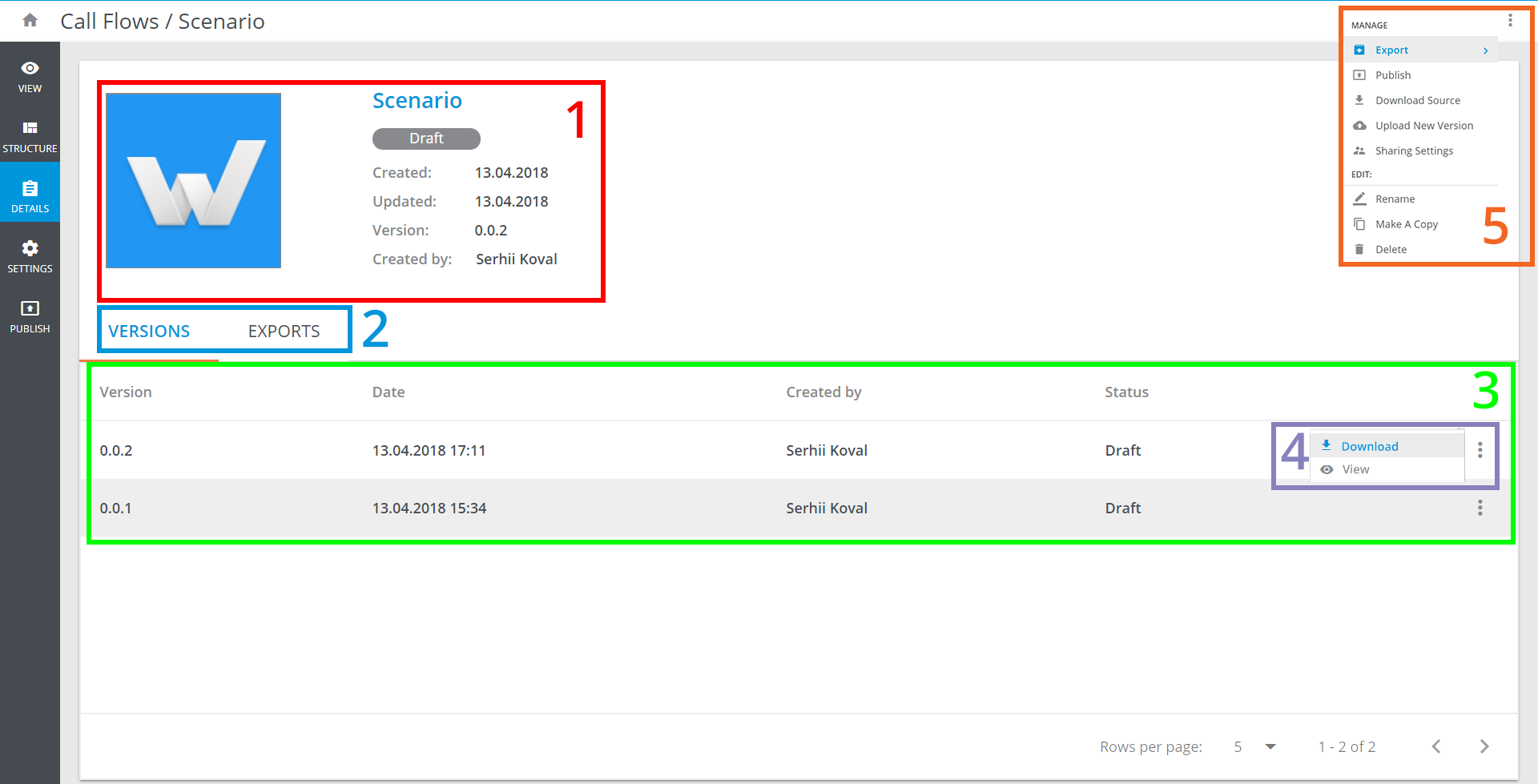
To open the Details page of a call flow, click at the thumbnail of the call flow:

The Details page displays the call flows image with a brief summary [1].
There are the Versions and Exports tabs under the summary [2].
The Versions tab [3] comprises the information on the call flow's version, its date, author, and status. At the end of each row there is the more options menu, where you can Download or View it [4].
More options menu contains managing and general editing options [5].
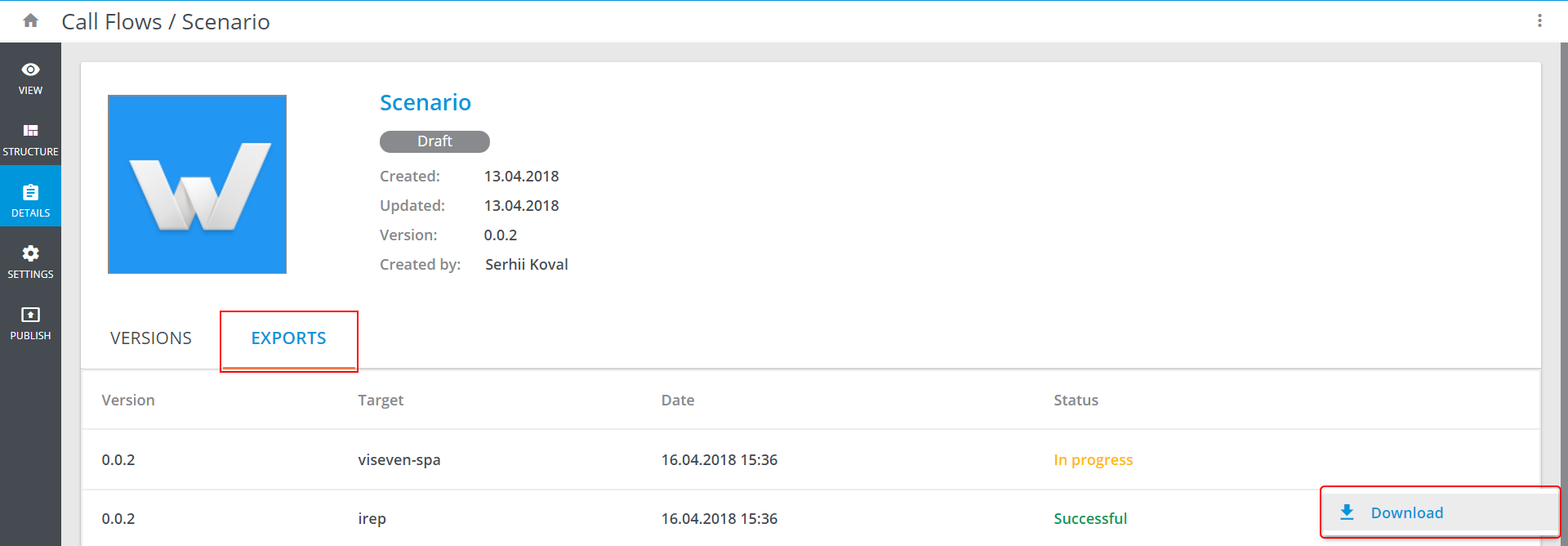
The Export tab displays all export builds, target systems, dates of export, statuses, and more options menus for each build. You can Download a build via its more options menu:
# Call flow export
Please find this article here.