# Digital assets
Digital Assets is an advanced media library, developed for uploading and storing images (PNG, JPG, JPEG, GIF), audio (MP3, WAV, AAC, WMA, OGG) and video (MP4, MOV) files, documents (PDF, CSV, XLS, XLSX), InDesign files (from the VAULT tab only), email templates and fragments for future use when creating/editing your eWizard items.
The Veeva Vault PSD images are displayed in the search results list but can't be uploaded to your item layout. Therefore, the system uses the compatible renditions of Veeva Vault source images, if any, instead.
Unlike regular media library, Digital Assets allows you to work with two content sources – eWizard proprietary (ASSETS) and Veeva Vault (VAULT):
Once  is selected, you are redirected to the
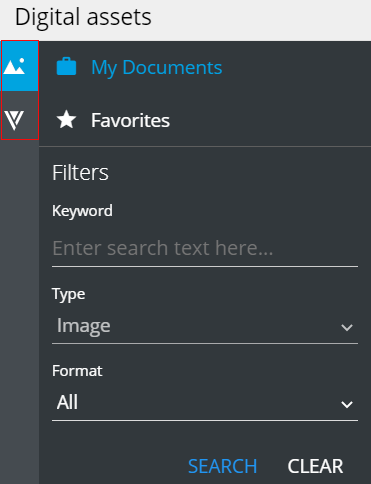
 Digital assets pop-up where you can find the following blocks:
Source selection, filters, and search – on the left.
Content block – in the main area.
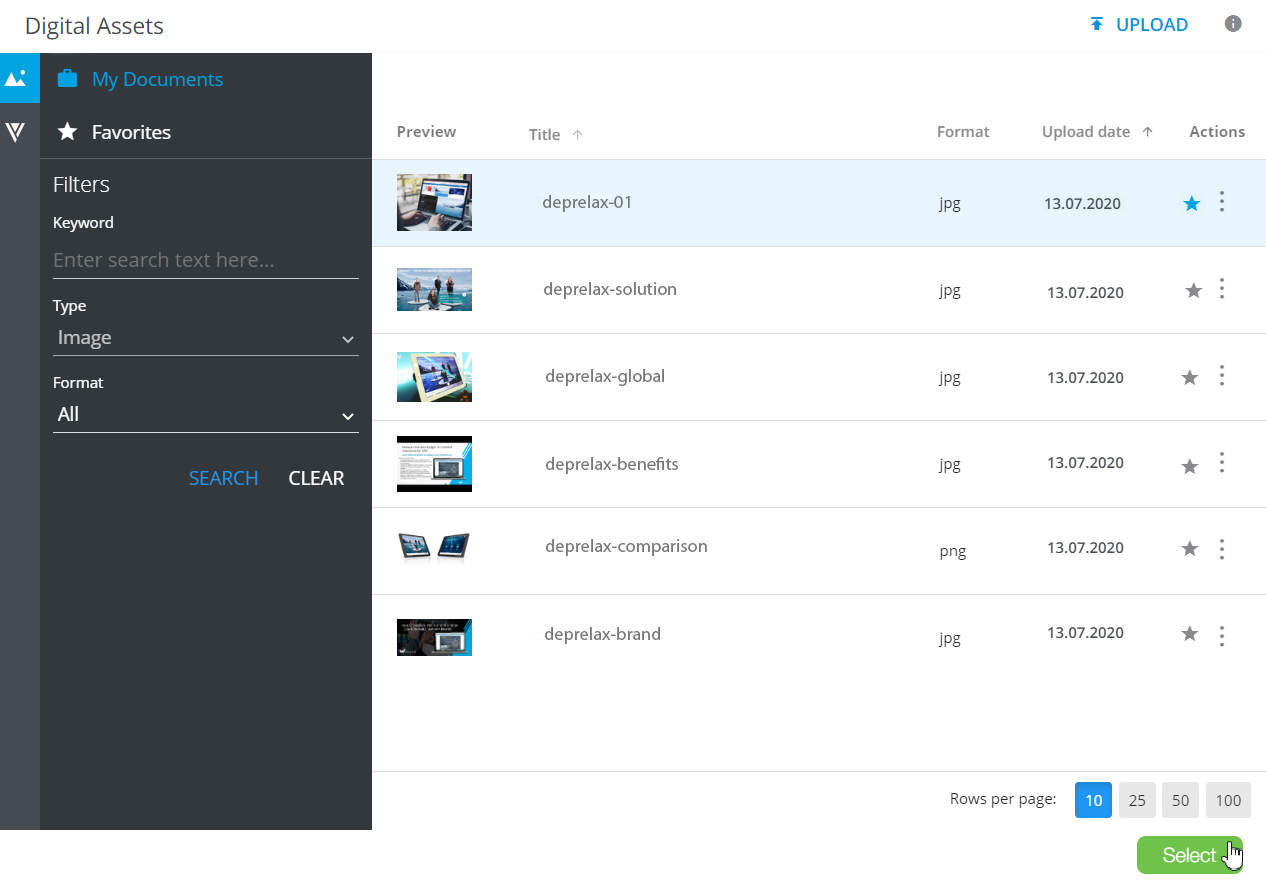
Find the assets details and available actions in the Asset management section.
To upload new media to the assets library, click  in the top right corner.
Digital assets supports bulk upload.
There are no upload size limitations; it's recommended to keep slides less than 5MB, so, try not to upload redundant media. In case your images resolution is more than the target device display, resize the image to proper fit. When it's possible and acceptable, compress media before upload.
Once  is selected, follow the Veeva Vault assets instructions.
# Digital assets for emails
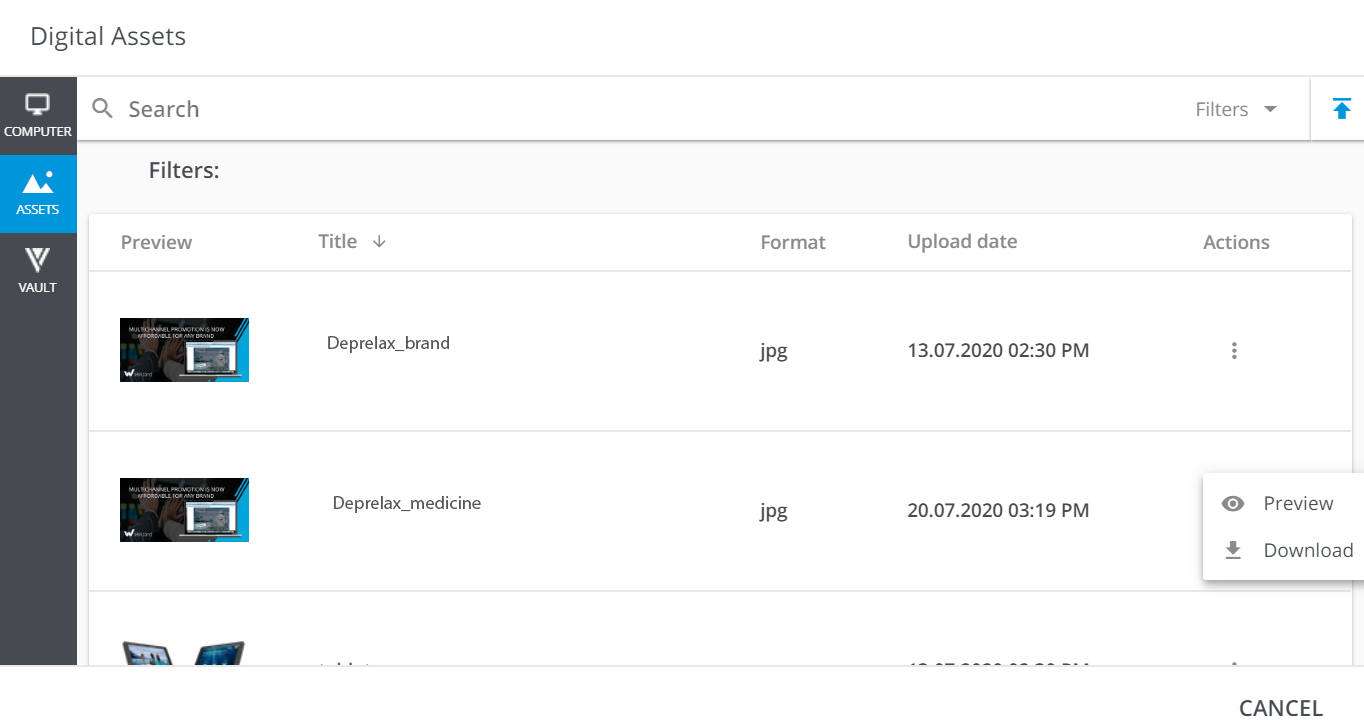
For emails, the Digital assets pop-up looks different and features more options.
Once the image component is on the layout, click BROWSE to be redirected to the Digital assets pop-up. Here, you can select three available sources:
 (COMPUTER) – to upload new files from your device.
- (ASSETS) – to use the assets previously uploaded to the media library via .
- (VAULT) – to search for assets in Veeva Vault.
You can perform the following actions with the assets uploaded to the media library:
Sort the records in the list by title or the upload date.
Find the required asset using the
Searchfield.Filter the asset records by format via the
Filtersmenu.Preview / download each asset with its more options.