# e-Detailers
e-Detailers are the presentations you create to promote pharmaceuticals. This section describes how to create new presentations, upload template-based ones, convert Power Point presentations into e-Detailers. You will know how to copy and edit e-Detailers, change their structure, view slides, export presentations in the required format, publish or share them, and also how to set up KPI gathering.
The e-Detailers section is split into two tabs [1]:
My Librarycontains e-Detailers created by you.Shared with mecontains e-Detailers shared with you.
The following statuses [2] are available for e-Detailers:
Draft– the newly created or in the process of editing.In Review– sent for review.Declined– declined upon review.Reviewed– approved upon review.
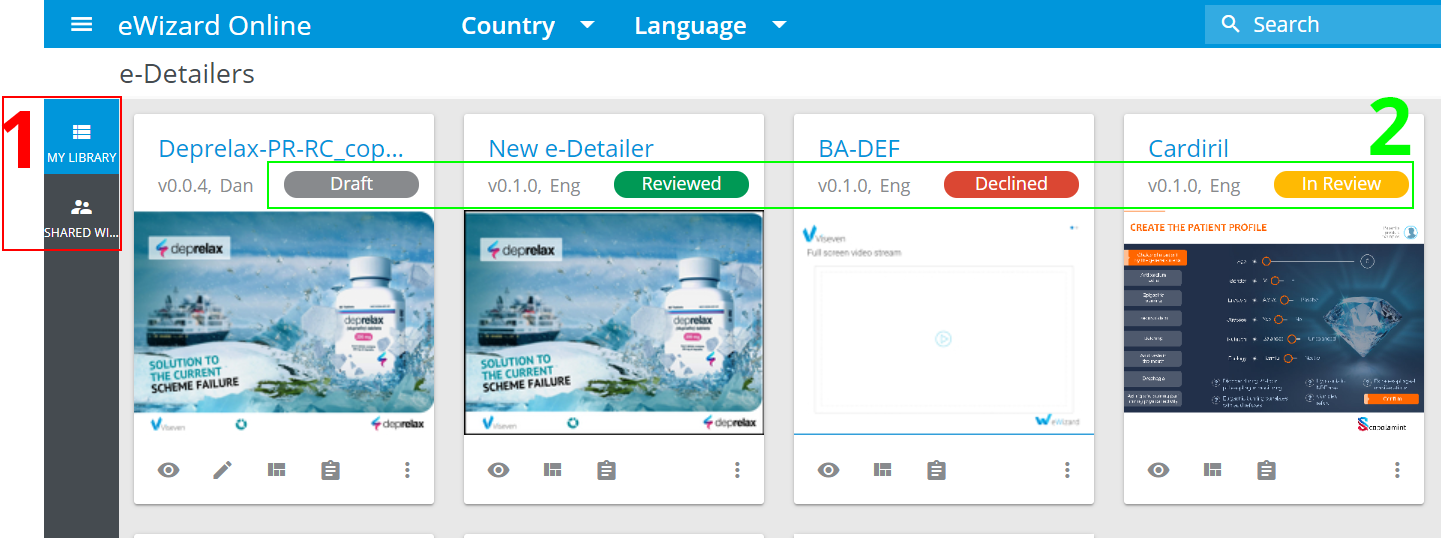
For non-draft e-Detailers, their status icons can be used as links to their corresponding records in Reviews.
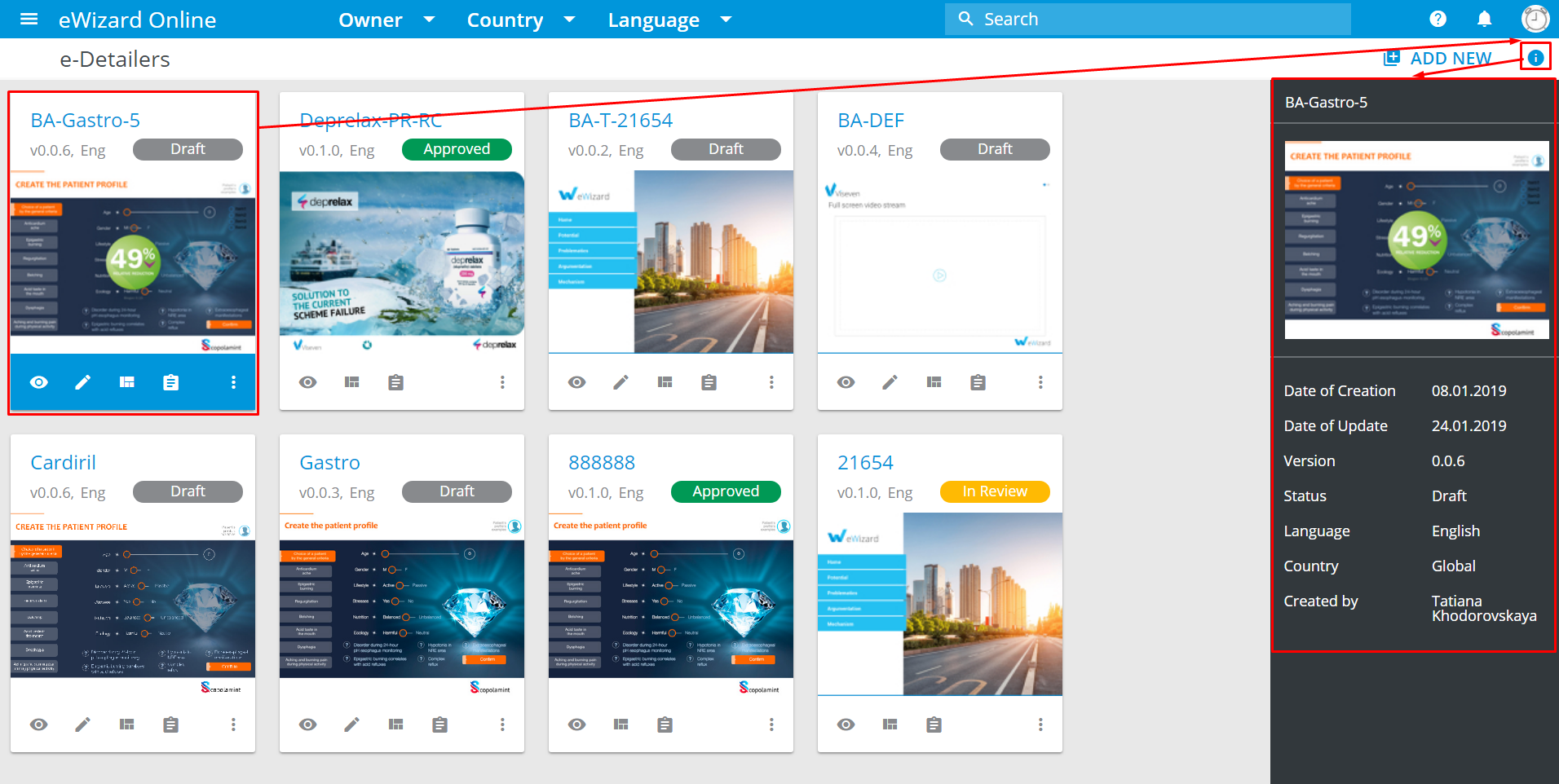
Click  to open/hide the e-Detailer's
 Information panel:
# Operations with e-Detailers
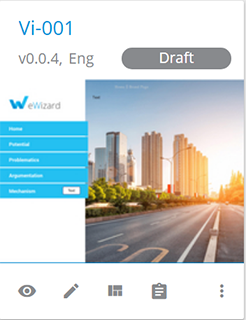
At the bottom of an e-Detailer's card, there are the following options:
| To… | Click… | Result… |
|---|---|---|
| View your e-Detailer | View  | The e-Detailer opens in the read-only mode. |
| Modify your e-Detailer | Edit  | The e-Detailer opens in the slide editing mode. |
| View e-Detailer's chapters and how the slides are arranged | Structure  or double-click the e-Detailer's card or double-click the e-Detailer's card | The e-Detailer opens in the structure editing mode. |
| Get more information on your e-Detailer | Details  | The e-Detailer's page opens. You can see its summary, settings, exports, and publications. |
| Perform more operations with e-Detailer | More options  | A menu with e-Detailer's additional options opens. These options are common for all e-Detailers with the same status. |
The statuses of non-draft e-Detailers lead to their corresponding records in the Reviews section.
The number of operations with non-draft e-Detailers is reduced.
# More options
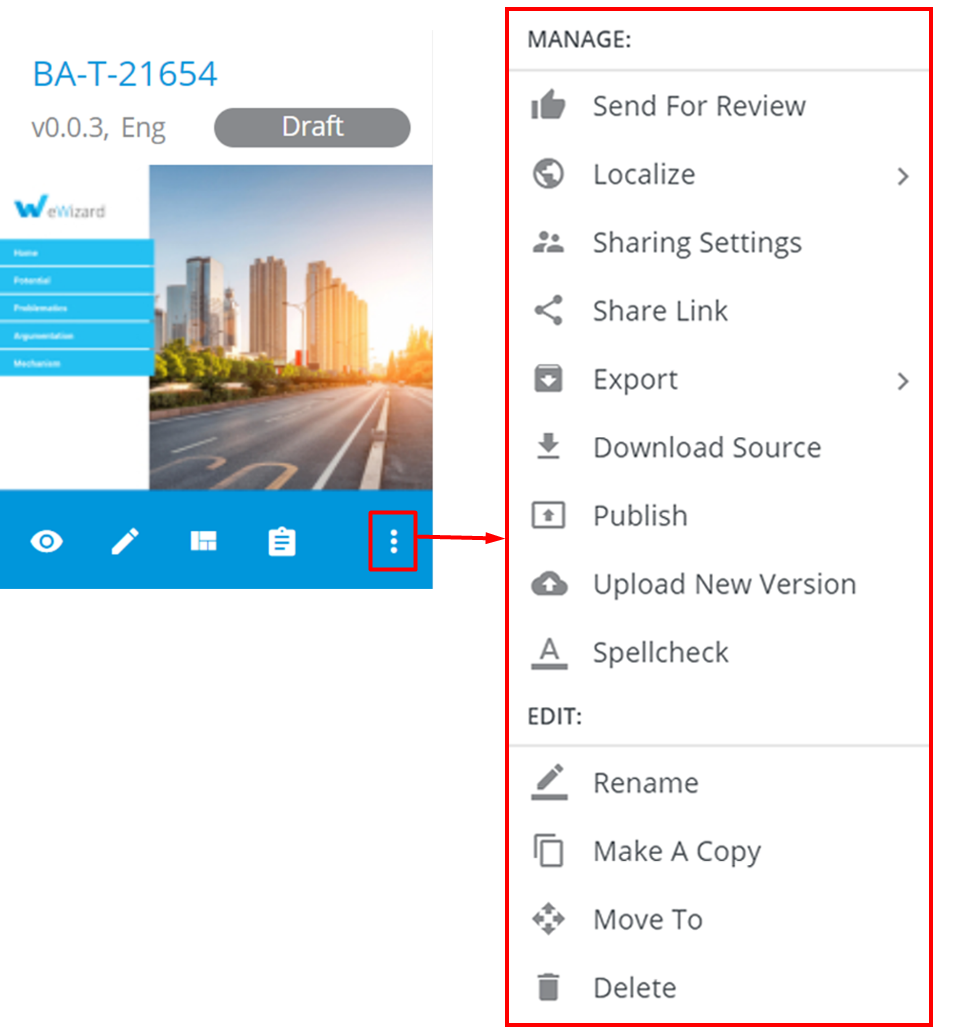
To open common options, click More options () on the e-Detailer's thumbnail:
| To… | Click… | Result… |
|---|---|---|
| Approve an e-Detailer for use | Send For Review | The link to the e-Detailer is sent to a person authorized to review. The e-Detailer's status becomes In review, and its functionality is reduced. After the review, it can be Approved or Declined |
| Translate an e-Detailer | Localize | The localization copy is created. Send it for localization or localize it right in eWizard |
| View who can access your e-Detailer and assign users for collaborative work | Sharing Settings | You are redirected to the Sharing Settings tab within the e-Detailer's Details page |
| Share your e-Detailer with others | Share Link | A pop-up opens. Select users' emails to share your e-Detailer with |
| Open an e-Detailer for demonstration to end-users | Export | You get the email with the link to the following, depending on the option you select: 1) a special build created of your e-Detailer in the format compatible with your target system, 2) a PDF/PPT document, 3) a standalone application |
| Download your e-Detailer as is, in eWizard format (HTML5) | Download Source | The e-Detailer is downloaded to your device |
| Open an e-Detailer for demonstration to end-users in fewer clicks than Export | Publish | Your e-Detailer appears in your target system |
| Upgrade your e-Detailer | Upload New Version | Your e-Detailer is upgraded; its version, status, and metadata are changed according to the new update |
| Check the spelling in your e-Detailer | Spellcheck | You're redirected to the spellchecker page |
| Modify the name of your e-Detailer | Rename | Your e-Detailer's name is changed |
| Duplicate your e-Detailer | Make A Copy | A new identical e-Detailer is created, but with a different name. Its status is Draft. |
| Relocate your e-Detailer | Move To | The destination selection dialog opens |
| Remove your e-Detailer | Delete | Once the action is confirmed in the pop-up that appears, the e-Detailer is no longer available |
As e-Detailers with different statuses feature various sets of More options (Draft e-Detailers feature the fullest one), you can find Create Draft within the Approved and Declined e-Detailers' more options menu (those are not available for editing). It allows turning them to drafts for further approval and usage without creating additional copies.
The source e-Detailer, when it is turned to a draft, stops existing. It may be critical for Approved e-Detailers. So, make sure your required e-Detailer is safe. When everything fails, you can make a copy instead of creating a draft.
# Filters and search
eWizard allows you to quickly find necessary content via search and filtering of the existing e-Detailers.
# Filters
You can filter the content by three criteria: Country, Language, and Owner:
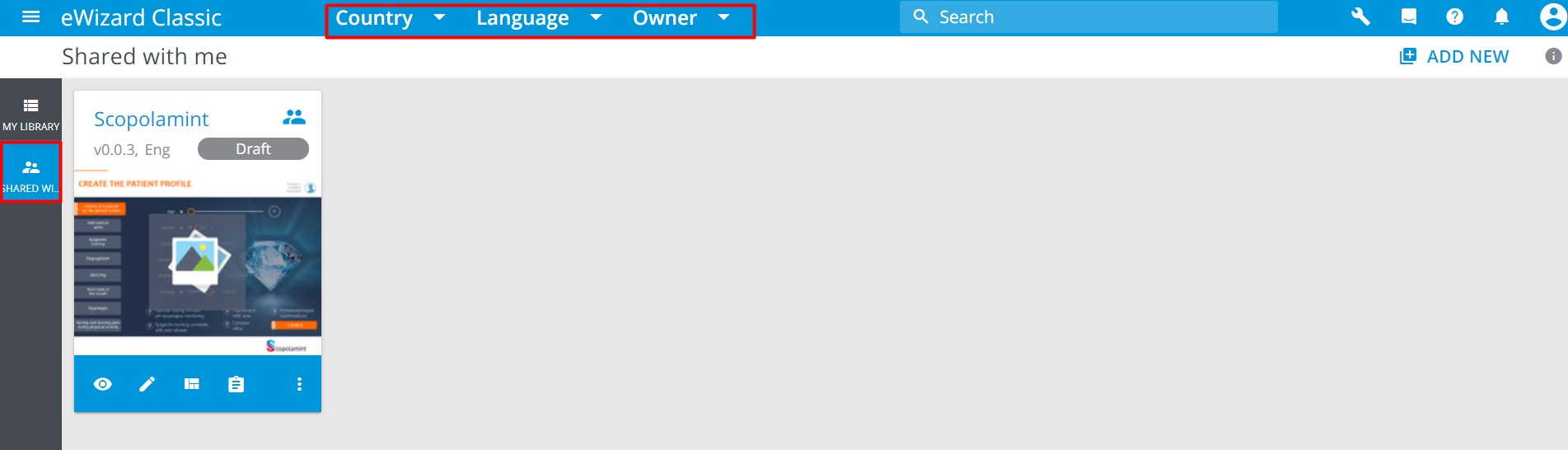
Please note that the Owner filter is given only on the Shared with me tab.
All target countries and languages available in the system are listed in the Country and Language filtering menus. All system users are given in the Owner filtering menu.
To filter the e-Detailers:
Click the
Country/Language/Ownerfield to unfold the corresponding menu.Check the desired box(es).
The filtered list of e-Detailers is displayed in the main area of the Library page.
To clear the filter, click the X sign to the right of the chosen option:

# Search
There is the Search field in the right-hand part of the toolbar:

Enter the e-Detailer's name to search it. Once you start typing, a drop-down with search hints appears. It displays all the e-Detailers containing the symbols you have typed in their names:
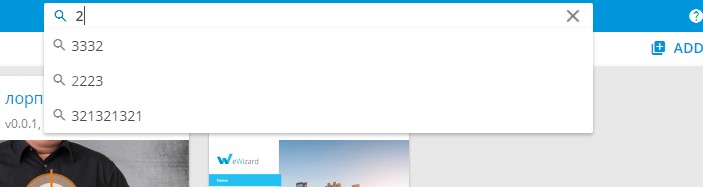
Select the desired e-Detailer from the drop-down – you will be redirected to its Details section.
To clear the search click the X sign in the right-hand part of the search field:

Alternatively, type a full search request and hit Enter on your keyboard. Then you will be redirected to the page with the e-Detailers containing those symbols in their names.
To go back to all e-Detailers page, use the navigation keys in your browser or click the back arrow to the left from the Search result page title:
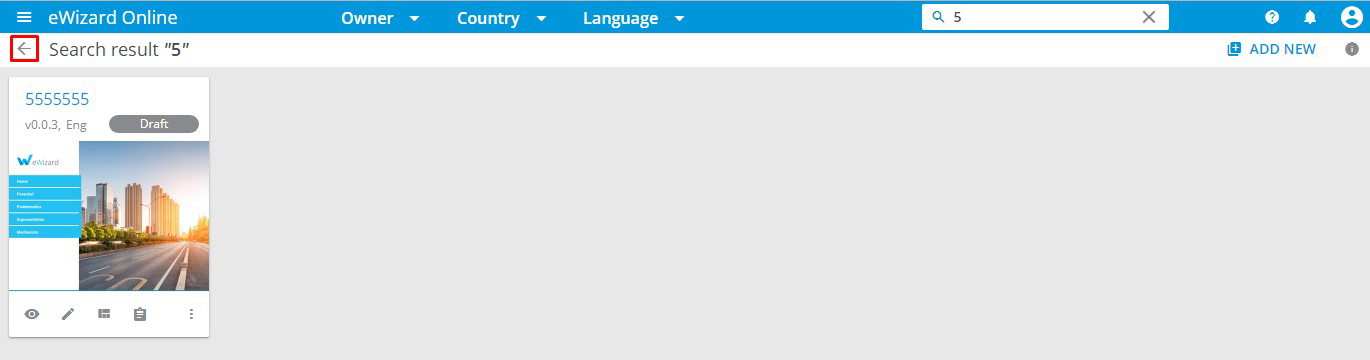
You can filter the search results as well.
# e-Detailers Publishing
Please find this article here.
# e-Detailers publishing to Veeva Vault
Please find this article here.
# e-Detailers Publishing to Veeva CRM (iRep)
Please find this article here.
# e-Detailers Publishing to eWizard NaviGate
Please find this article here.
# e-Detailers Publishing to eWizard (Global) Store
Please find this article here.
# e-Detailers Publishing to eWizard Pulse
Please find this article here.
# e-Detailers Publishing to Viseven
Please find this article here.
# e-Detailers Publishing to AEM
Please find this article here.
# e-Detailers Publishing to CT Presenter
Please find this article here.
# e-Detailers Export
Please find this article here.
# Export to CLM
Please find this article here.
# Export to documents
Please find this article here.
# Export to applications
Please find this article here.