# Microsites
Microsites is a service for creating and editing plain sites (such as for registration to a conference remote call).
# Microsite creation
To create a new microsite:
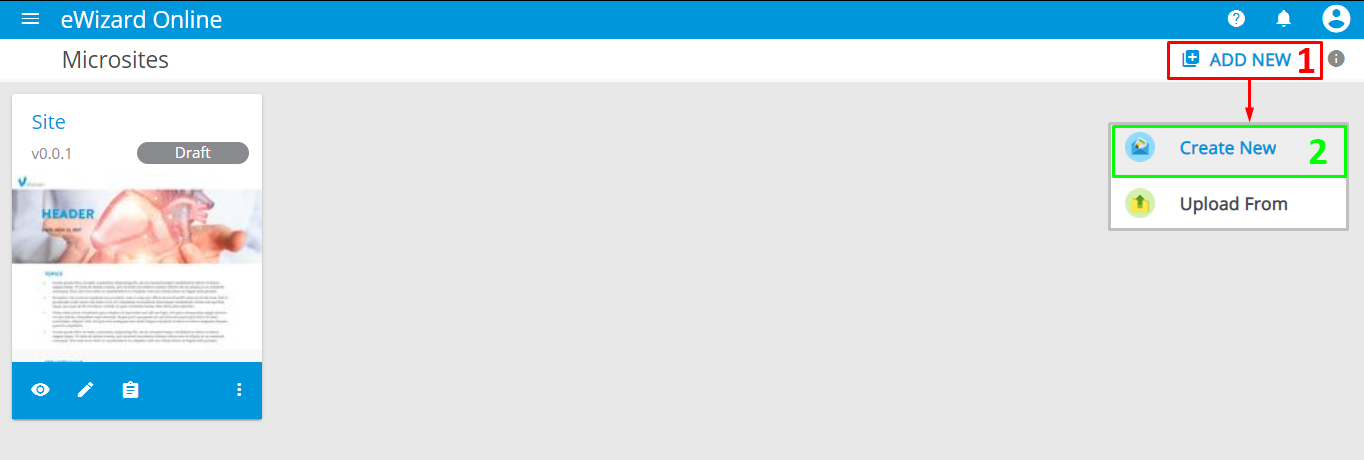
- Click
ADD NEW[1]. - Select
Create New[2].
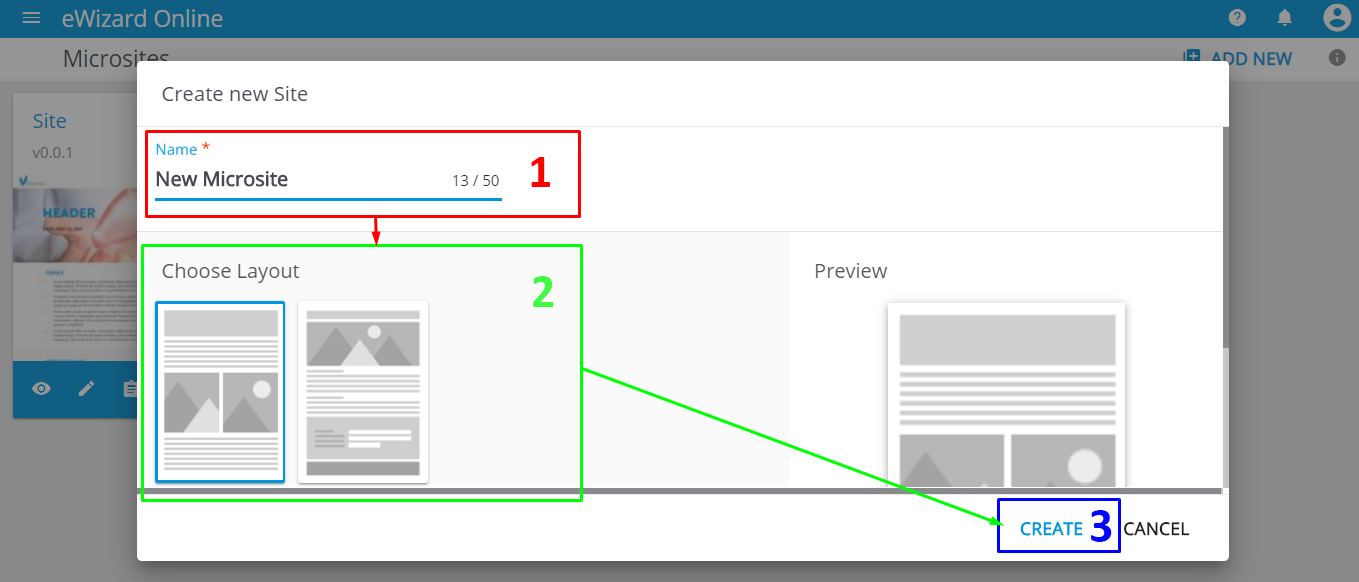
- Enter the name [1].
- Select a template [2].
- Click
CREATE[3].
The new website appears at the top left in the websites gallery.
To upload the website from your device:
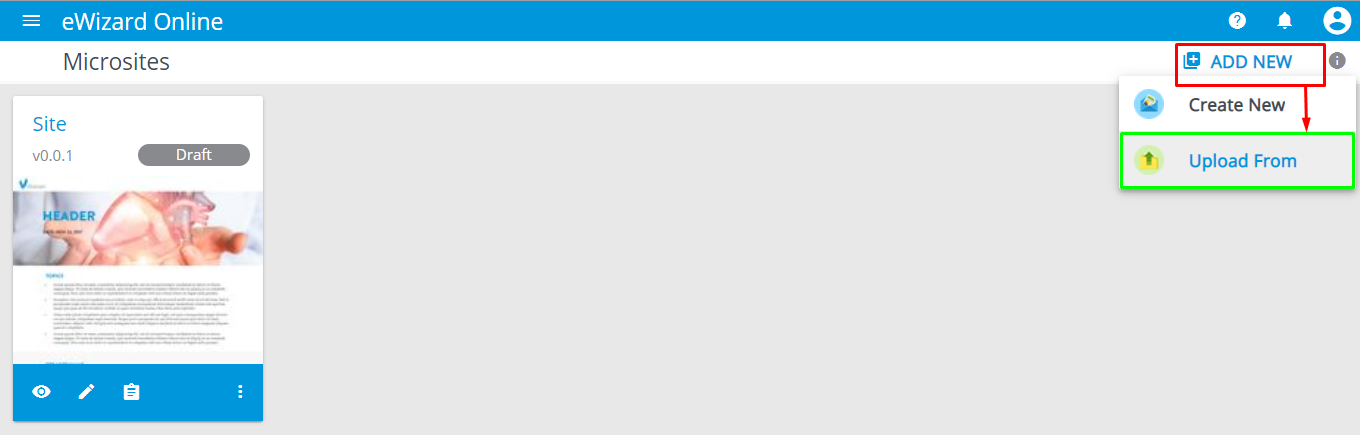
- Click
ADD NEW[1]. - Select
Upload From[2].
The thumbnail of a website displays its preview image, name, version, status, and the bottom icons bar. There are four icons on the bottom bar: View, Edit, Details, and the more options menu:
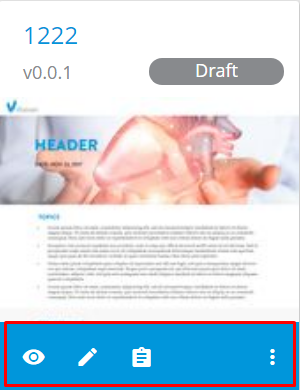
The website's more options menu ( ) allows you to
 Export, Download Source, Publish, Rename, Make A Copy, and Delete the website.
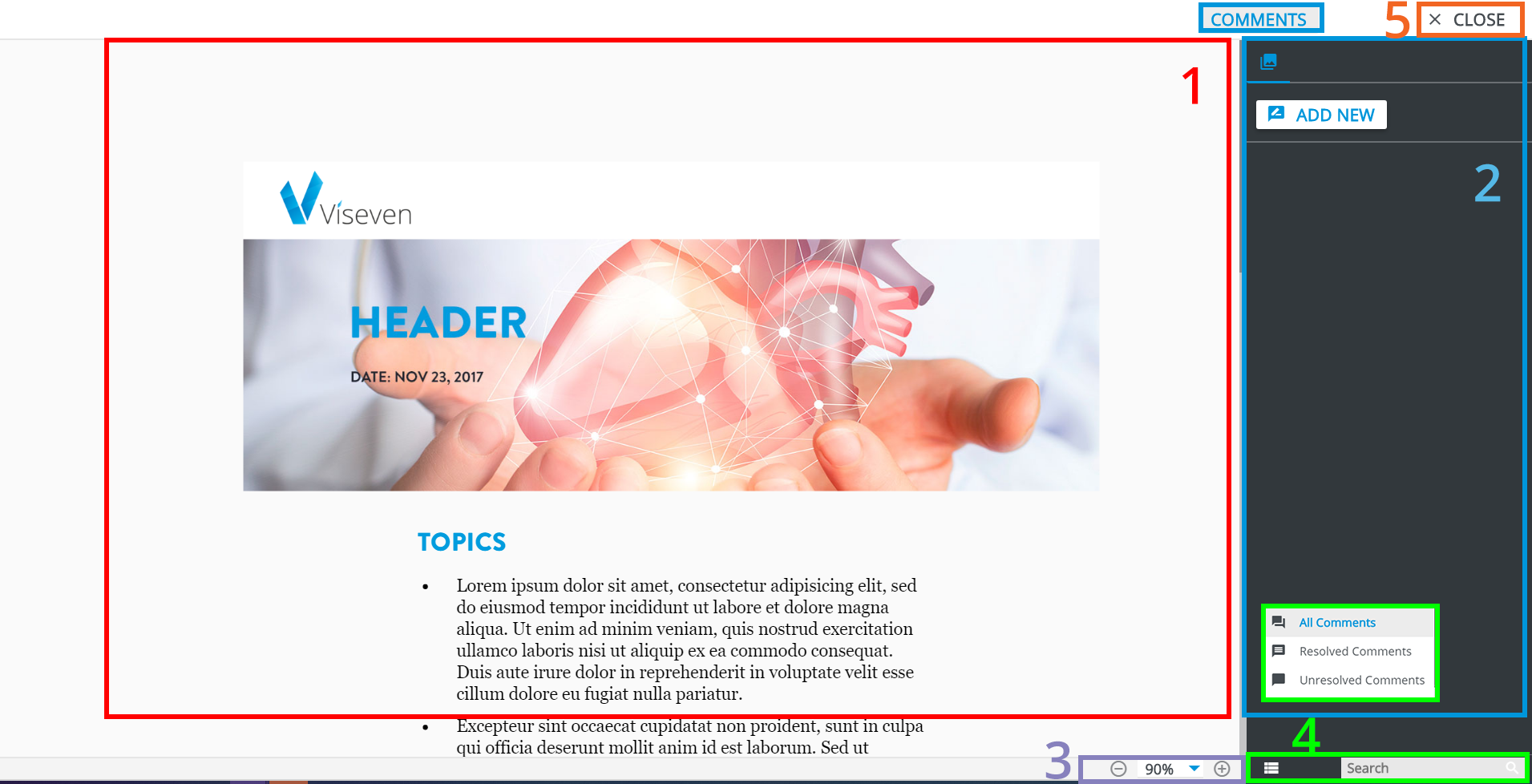
To open a website in the read-only mode, click View.
The view mode contains the view area [1], the comments button and the block [2], the scaling tool [3], the search field and filters [4], and the Close button [5].
# Microsite details
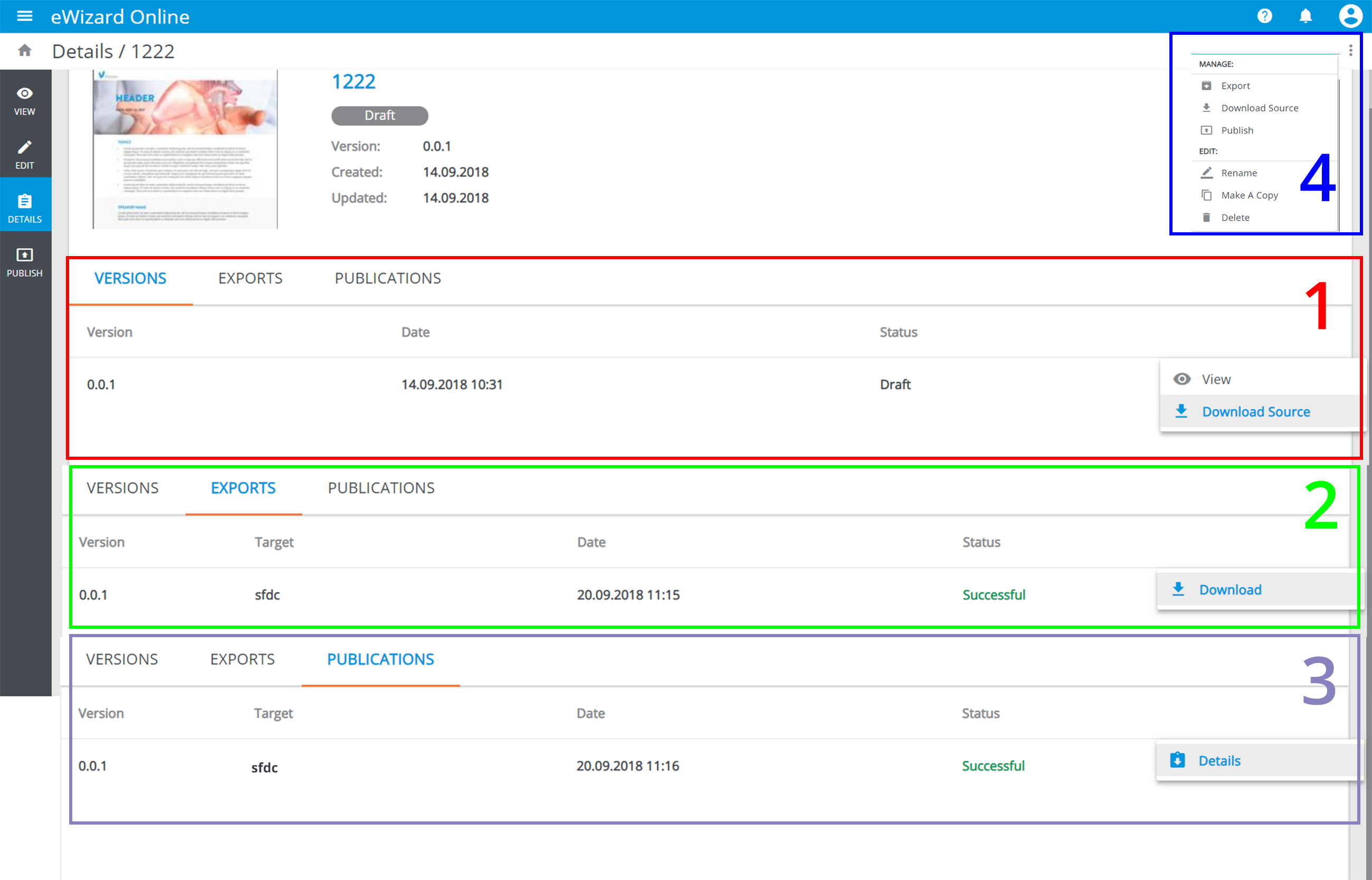
The Details page comprises the microsite's image, its summary and three tabs: Versions [1], Exports [2], and Publications [3]. Each tab contains the detailed information about the corresponding website's aspects and individual more options menus.
The whole page's more options menu [4] contains managing and general editing options:
To view the publication details:
Go to
Publications.Unfold build's more options menu.
Select
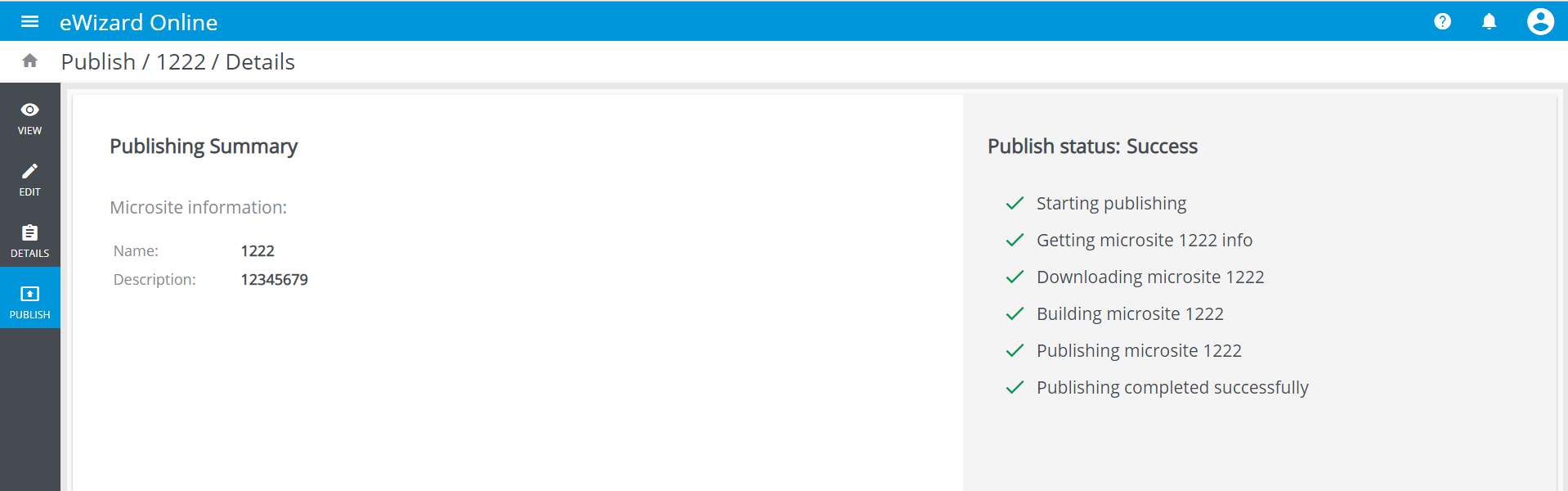
Details[3]. You will be redirected to thePublishing summarypage: