# Add a new email
To add a new email, follow the steps below:
Click ADD NEW in the top right corner of
My library.Select
Email. TheCreate new emailpop-up appears:
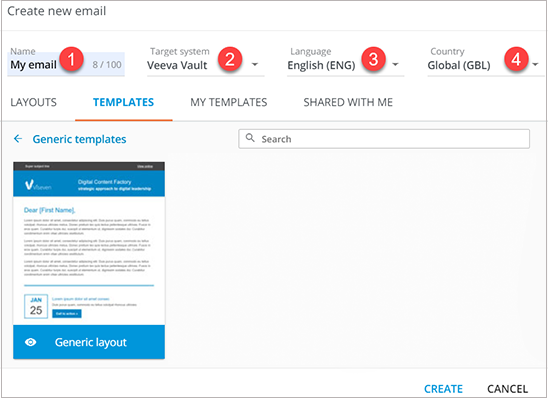
Set the name for your email [1].
Specify metadata: a target system [2], language [3], and country [4].
The list of target systems is configurable. Please contact your administrator for details.
Under the metadata dropdowns, you can find the available templates in the following tabs:
Layouts– generic layouts (templates with the basic outline).Templates– templates with corporate logos and other essentials.My Templates– templates created by you.Shared with me– templates shared with you.
To find a template, enter its name in the Search field.
- Select the required template and click
CREATE.
To preview a template, click  on its card.
The list of available email footers depends on the Country and Language you've set during email creation.
# Edit email details
You can change the email metadata after it was created. To do this:
Unfold the email more options.
Click
Edit Details:
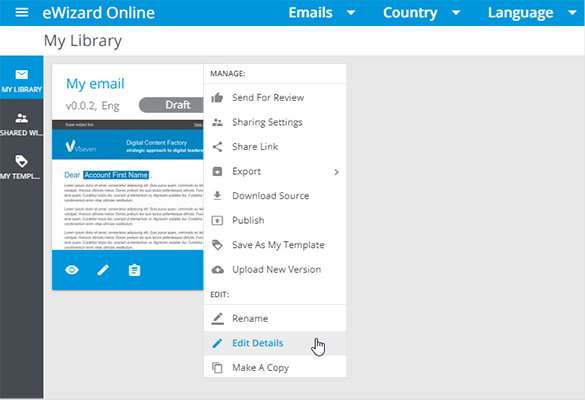
In the pop-up that appears, update the fields with the required information.
Click
SAVEto apply your changes.
Upon the target system change, email blocks are automatically replaced. As a result, the same email body is embedded in another template specific to the selected target system.