# Salesforce.com
You can publish your e-Detailers to Salesforce.com. For this:
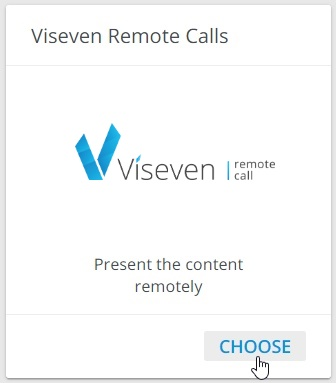
- Choose
Viseven Remote callas the target system:
Select your Salesforce environment and click
Sign in[1].In the pop-up that appears, enter your credentials [2]:
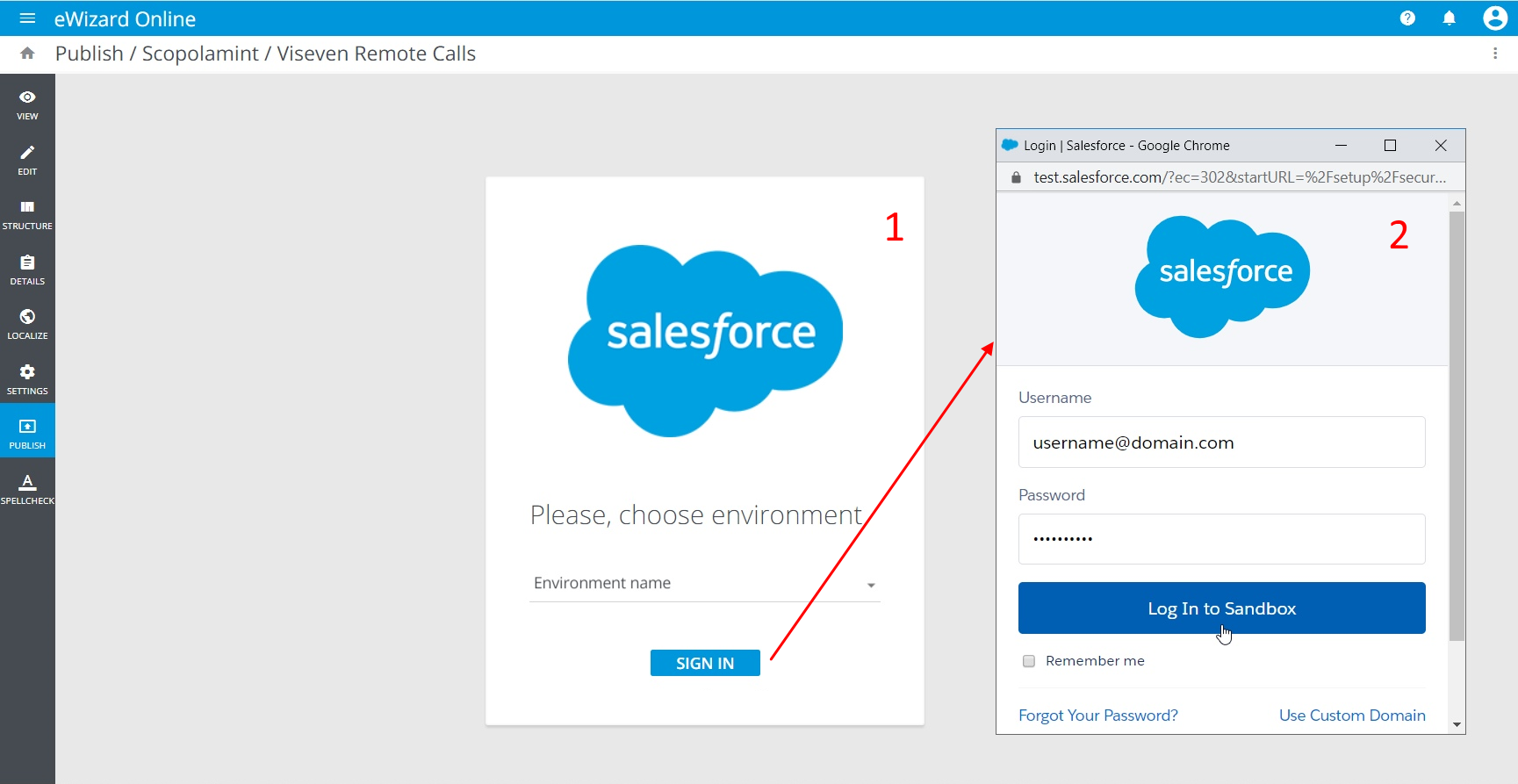
Make sure the user you are authorizing has permissions to publish the content.
- Review the data of the e-Detailer you are going to publish (thumbnail, name, author, version, etc.) and click
NEXTto continue:
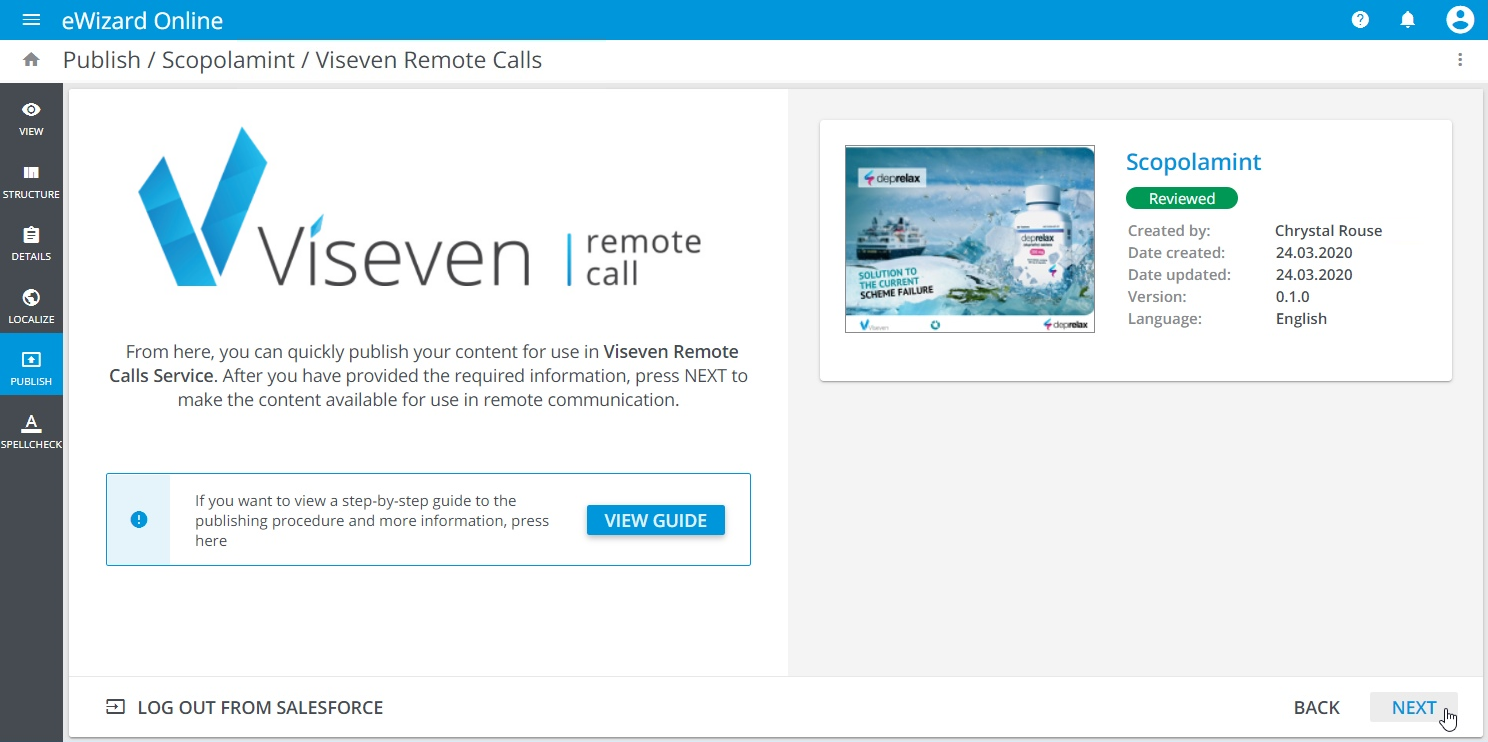
Click BACK to return to the previous step and make the changes you need, if any.
You can LOG OUT FROM SALESFORCE clicking the corresponding button in the bottom left corner of the page.
- Enter the name for your e-Detailer and select the presentation in the Salesforce system to tie your e-Detailer to [1]:
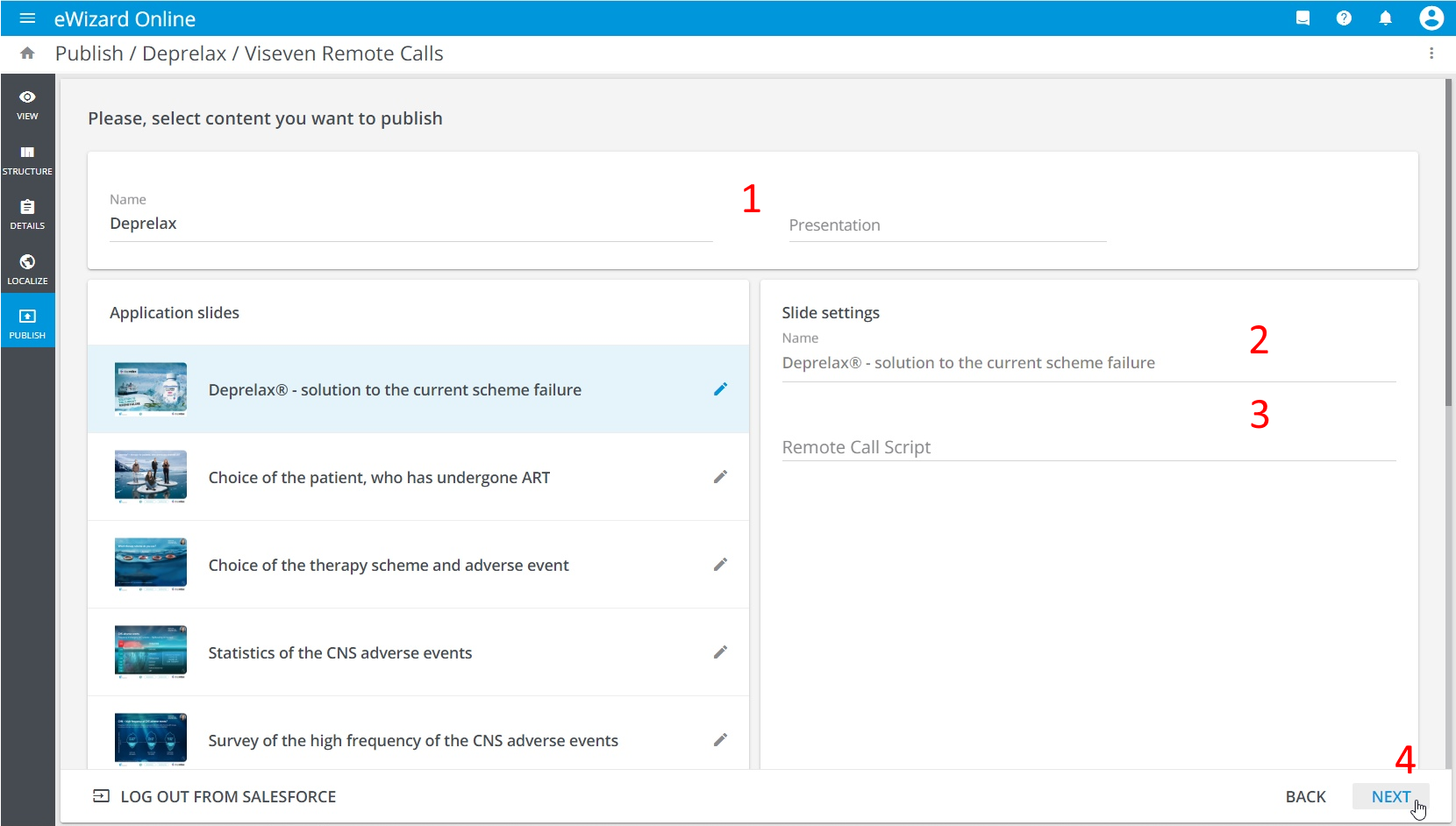
You can review the slides you are publishing. Click the slide in the left block and find its details on the right [2]. Remote Call Script is a hint checklist to be used while displaying the given slide, if needed [3]. It will be displayed only for the person presenting a remote call.
Click
NEXT[4].Review your prepared e-Detailer. In the left column, you can find
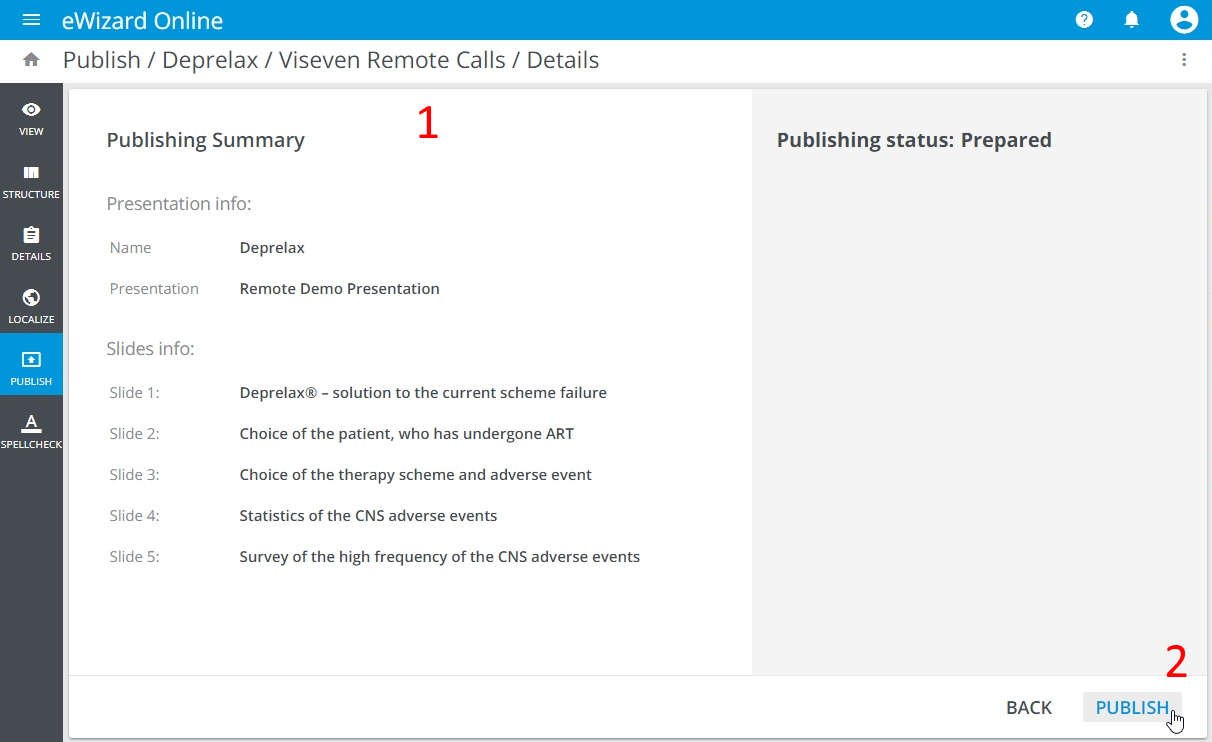
Publishing summary[1] given in two sections.Presentation infocontains the names of your e-Detailer and the presentation to be tied to. In theSlides infosection, you can find names of the slides and their target action (added or updated). The already existing slides will be updated, while absolutely new slides will be added.Click
Publish[2]:
- The publishing progress is displayed step by step:
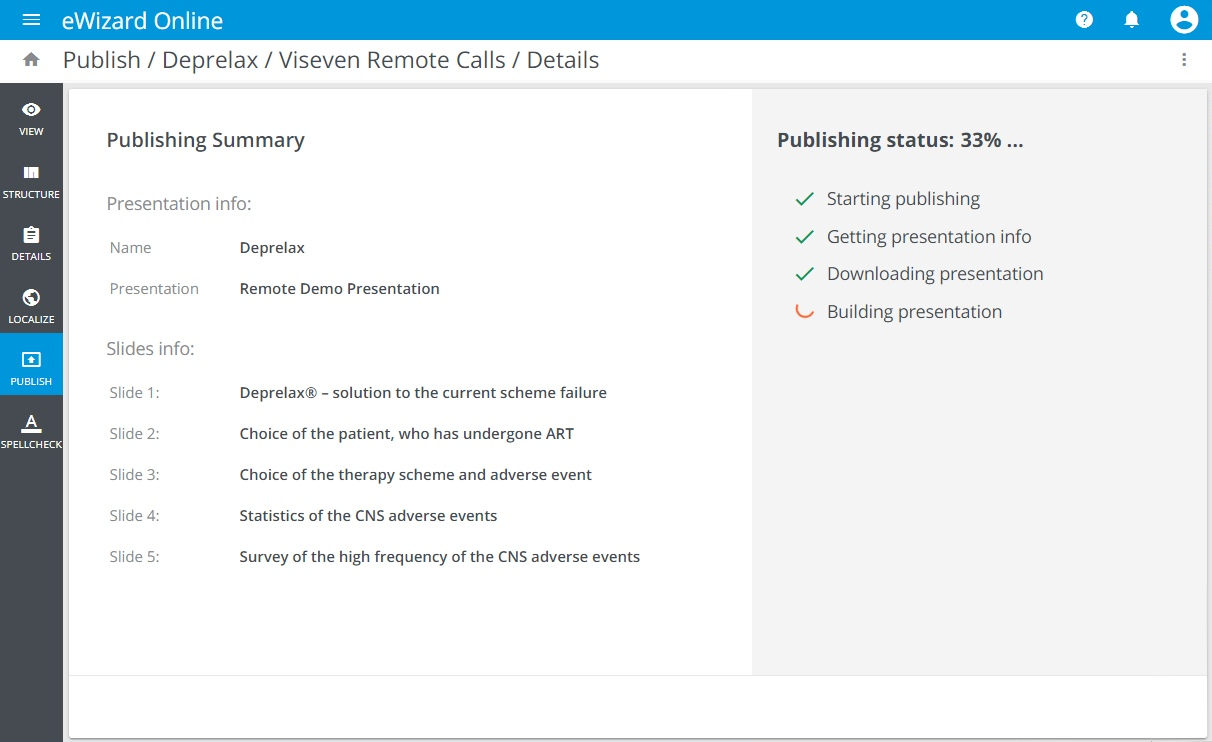
The successfully published presentation appears in your Salesforce profile (opens new window). You will also receive the email notification.
If there are any errors while publishing, you will be offered to view the publications history via the corresponding button:
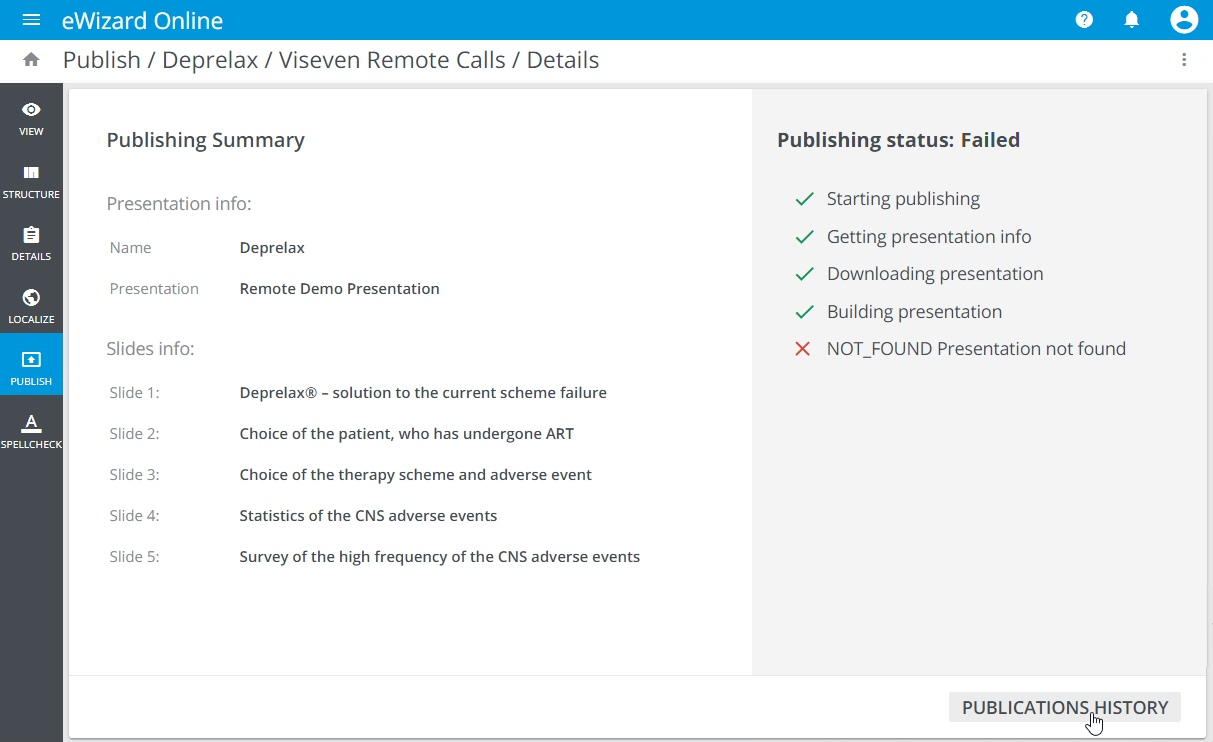
Click the Publications history button – you will be redirected to the Details section with the Publications tab opened. There you can see the e-Detailer publication details, including its status in the corresponding column:
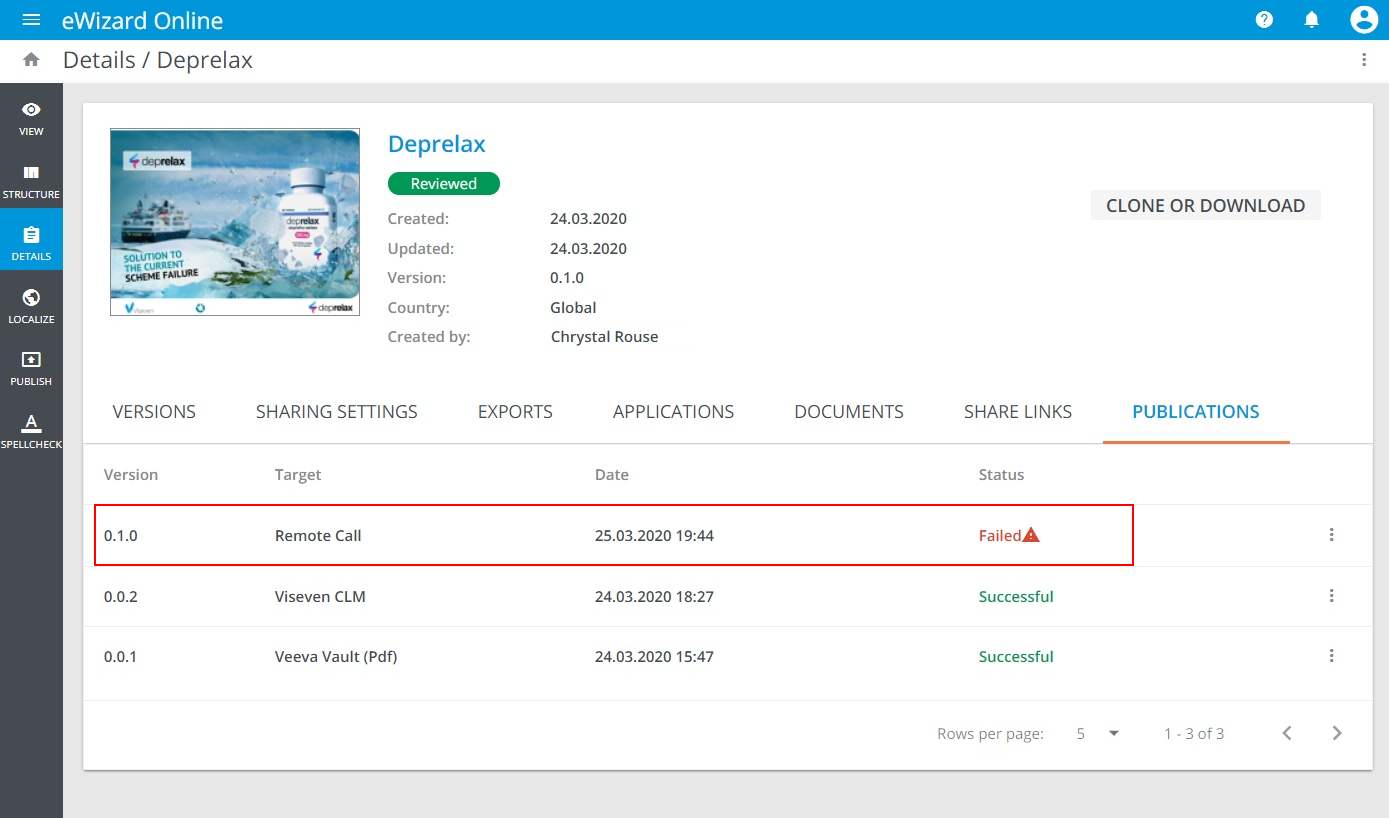
Update your e-Detailer settings and try publishing it again.
As a follow-up to each publishing process, regardless of its result (success or failure), a notification is sent to your email address.