# Service desk
We offer support to all customers as a part of their subscription. You can contact the eWizard Support team through the following channels:
Support requests are submitted as Agent role. The agent interacts with the end-user to resolve the issue. The ticket goes through particular stages and can be assigned to any number of agents until it is resolved. The agent and the end-user can add the required people as watchers or participants to the ticket. The involved agents can add public and private comments, while end-users can add comments only publicly. All the parties can track the ticket.
# Create a request
To create a request with eWizard Service desk:
On the top panel of any eWizard page, click
 .
.Select
Service desk.
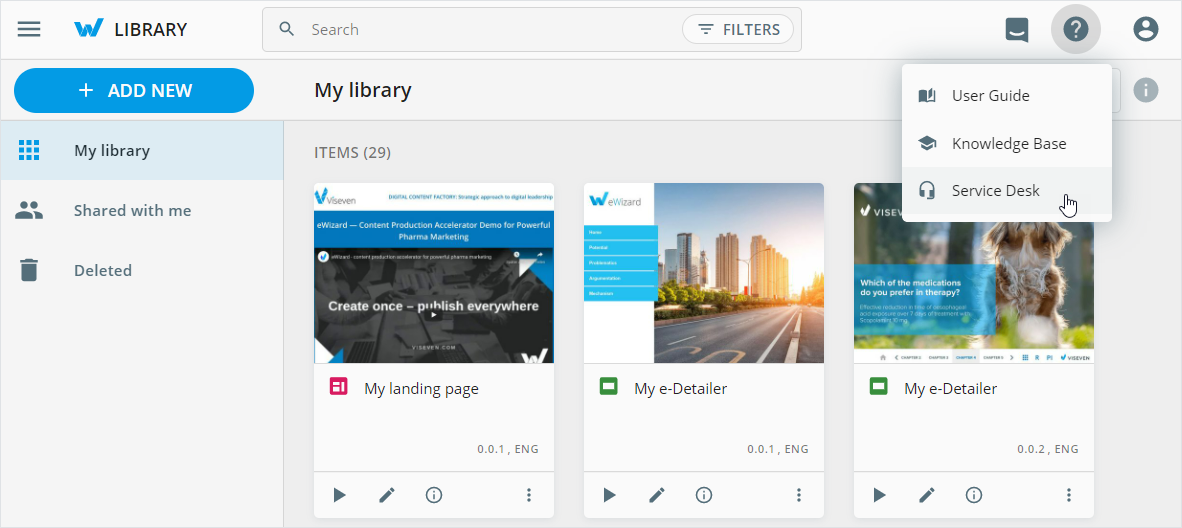
The eWizard service desk page opens.
Select the appropriate request type:
Product issue
Task/Service request
Access
Content deployment
Instance setup
Suggest an improvement
eWizard demo/training
You can use the Search field to find the required request type faster.
- Fill in the following fields depending on the request type:
:::: tabs
::: tab Product issue
| Field | Action | Required |
|---|---|---|
| Summary | Describe a problem briefly | Yes |
| Priority | Select the priority for your request—critical, high, medium, or low | No |
| Request category | Select the required option from the list | No |
| Due date | Set the due date to resolve the problem | No |
| Description/Preconditions | Enter the required details | Yes |
| Attachment | Add attachments, if any | No |
:::
::: tab Task/Service request
| Field | Action | Required |
|---|---|---|
| Summary | Describe a problem briefly | Yes |
| Due date | Set the due date to resolve the problem | No |
| Priority | Select the priority for your request—critical, high, medium, or low | No |
| Instance URL | Enter the URL of the instance used when you encountered the problem | No |
| Description | Enter the required details | No |
| Attachment | Add attachments, if any | No |
| Impacted user(s) | Enter the list of eWizard accounts experiencing the reported problem | No |
| Requestor | Enter your name | No |
| Requestor email | Enter your email | No |
| Requestor category | Select the required option from the list | No |
:::
::: tab Access
| Field | Action | Required |
|---|---|---|
| Summary | Describe a problem briefly | Yes |
| Instance | Enter the URL of the instance used when you encountered the problem | Yes |
| Enter your email | Yes | |
| First name | Enter your first name | Yes |
| Last name | Enter your last name | Yes |
| Country | Enter your country | No |
| Product | Enter the product you're having problems with | Yes |
| eWizard services- | Select eWizard services you're having problems with | Yes |
| Available content type | Select content types available to you | Yes |
| Priority | Select the priority for your request—critical, high, medium, or low | No |
| Attachment | Add attachments, if any | No |
| Description | Enter the required details | No |
| Requestor category | Select the required option from the list | No |
:::
::: tab Content deployment
| Field | Action | Required |
|---|---|---|
| Summary | Describe a problem briefly | Yes |
| Description | Enter the required details | No |
| Priority | Select the priority for your request—critical, high, medium, or low | No |
| Due date | Set the due date to resolve the problem | No |
| Instance URL | Enter the URL of the instance used when you encountered the problem | No |
| Impacted user(s) | Enter the list of eWizard accounts experiencing the reported problem | No |
| Attachment | Add attachments, if any | No |
:::
::: tab Instance setup
| Field | Action | Required |
|---|---|---|
| Summary | Describe a problem briefly | Yes |
| Environment type | Select the required options from the list | Yes |
| Instance name | Enter the URL of the instance used when you encountered the problem | Yes |
| Deadline | Set the due date to resolve the problem | Yes |
| eWizard services | Select the required eWizard services | Yes |
| Content type | Select the required content types | Yes |
| Some comments | Enter your comments, if any | No |
| Attachment | Add attachments, if any | No |
| Client is using identity providers | Select the required option from the list | No |
:::
::: tab Suggest an improvement
| Field | Action | Required |
|---|---|---|
| Summary | Describe a problem briefly | Yes |
| How things work now? | Enter the description of the existing flow | Yes |
| How things should work? | Enter a suggested solution | Yes |
| Related channel | Select the required options from the list | No |
| Priority | Select the priority for your request—critical, high, medium, or low | No |
| Due date | Set the due date to consider your suggestion | No |
| Instance URL | Enter the URL of the instance used when you encountered the problem | No |
| Attachment | Add attachments, if any | No |
| Impacted user(s) | Enter the list of eWizard accounts experiencing the reported problem | No |
:::
::: tab eWizard demo/training
| Field | Action | Required |
|---|---|---|
| Summary | Summarize your training request | Yes |
| Description | Enter the required details | No |
| List of participants | Enter the list of eWizard users for training | No |
| Amount of trainings | Enter the required quantity | No |
| Instance URL | Enter the URL of the eWizard instance for training | No |
| eWizard interface | Select the required option from the list | No |
| Content type | Select content types for training | No |
| eWizard services | Select eWizard services for training | No |
| What content should be used on the training? | Select the required option from the list | No |
| What CRM/CLM formats does client use? | Select the required options from the list | No |
| Language of the training | Select the required option from the list | No |
| Type of the training | Select the required option from the list | No |
| Attachment | Add attachments, if any | No |
:::
::::
- Click
Createto submit your request.
# View your requests
To check the list of your requests:
Click
Requestsin the upper-right corner.Select
My requests.
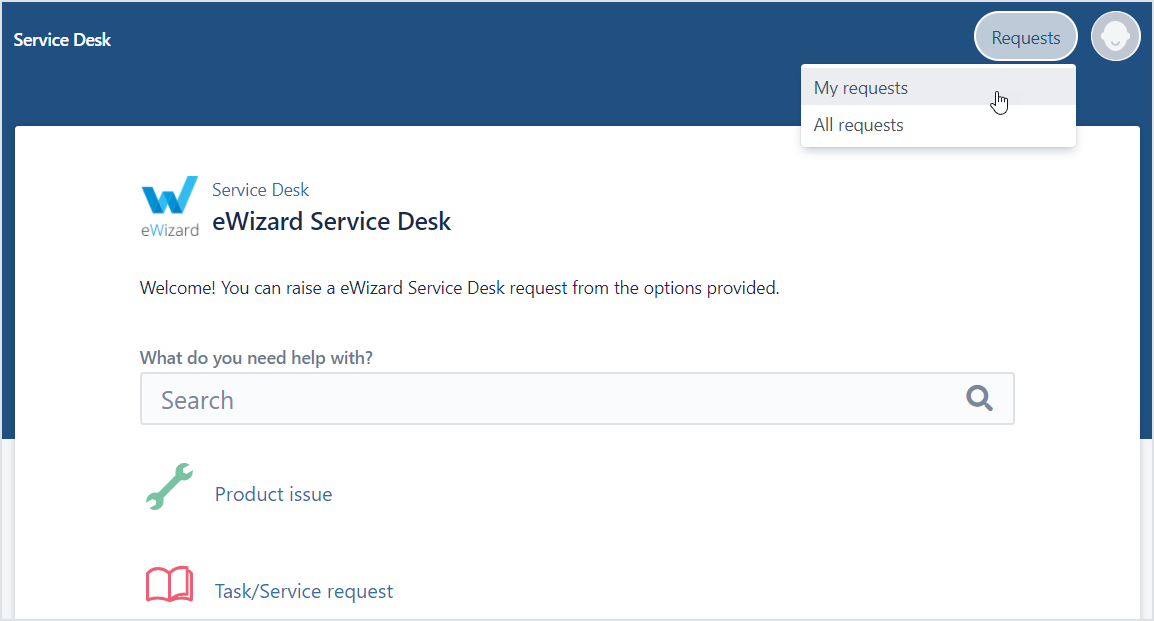
The Requests page opens.
- Check the required request information.
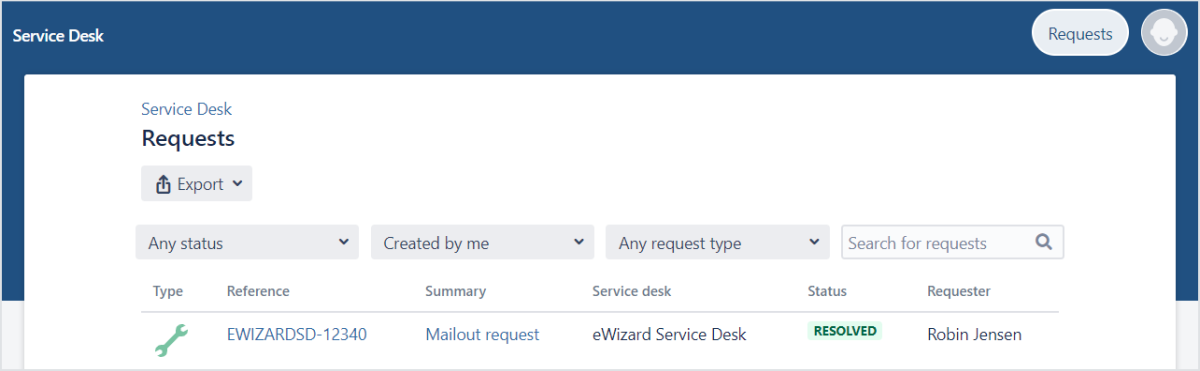
Also, you can search for your requests or apply filters:
to select the request status—any, open or closed
to select the role in the request creation—created by anyone, by you, or where you're a participant
to select the request type
To download requests as a CSV file, click Export and select the required list of requests—all or current.
Once the issue is resolved, the assigned agent notifies you with the email.