# Your user profile
In the user profile section, you can check your user information and manage your personal data.
To open your ACCOUNT page:
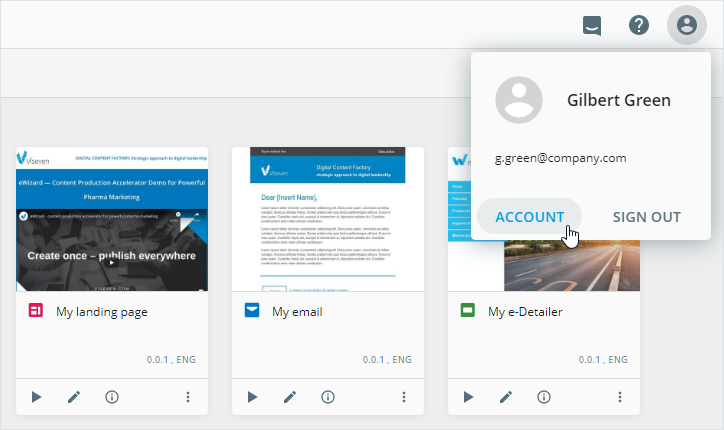
Click your profile picture in the upper-right corner of any eWizard page.
Click
ACCOUNTin theProfile menupop-up that appears.
The ACCOUNT page opens with your profile data, additional settings, and information.
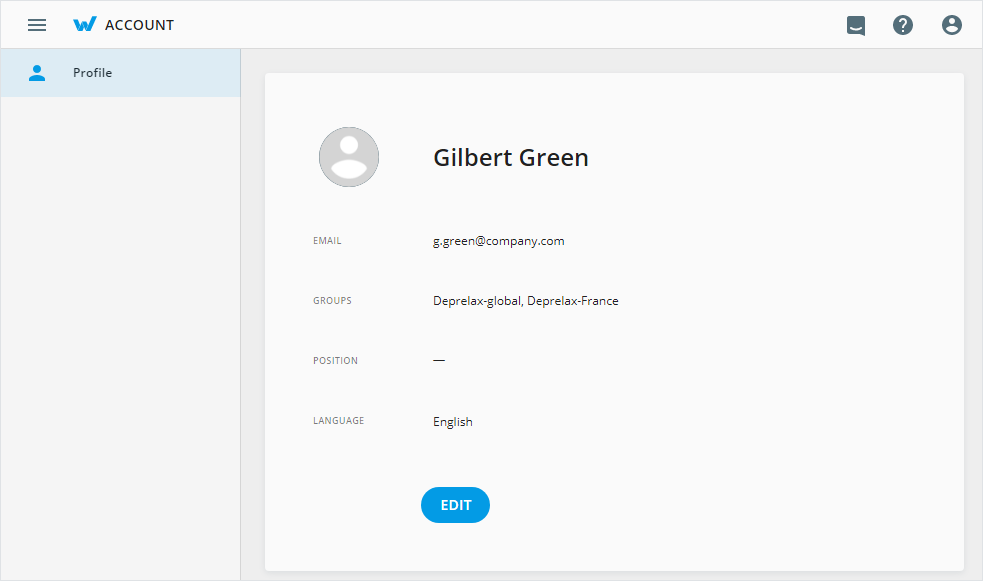
Your email address and group names are displayed for your information only. To change them, please contact your administrator.
To modify your profile, click EDIT. You can apply the following changes:
Click
 to set the profile picture.
Edit your user name and position occupied.
Update the password with the CHANGE PASSWORD link.
Set the platform interface language.
Please note that once you select a different language, this change is applied only to your account.
To apply changes, click SAVE.
# Password change
To change the password of your profile:
On the
ACCOUNTpage, clickEDIT.Click
CHANGE PASSWORD.
The Change password pop-up appears.
Enter your current password.
Create and confirm your new password that must contain:
8 or more characters
a digit
2 special characters
2 uppercase letters
2 lowercase letters
Click
CHANGEto save your new password.