# Work on rep-triggered and broadcast emails
eWizard allows users to incorporate business flows into their work with emails of two types:
Rep-triggered – targeted and personal emails. You use this type to send an invitation email, a follow-up upon the presentation demonstration or to perform other personalized activity. The content in rep-triggered emails is always credible and lets companies interact with customers more efficiently.
Broadcast – emails used for mass mailing. It's designed for multiple addressees and provides common fact-finding or introductory information on your product.
These two email types are supported by eWizard with specially designed blocks, modules, and merge tags.
# Create an email
With eWizard, users can utilize two item types to create emails:
Email – a standard HTML5-formatted message with media assets, intended for use within mail user agents.
Fragment – a part of the email providing updates or additional information intended for email reusage. Fragments can't be mailed on their own and are applicable to rep-triggered emails only.
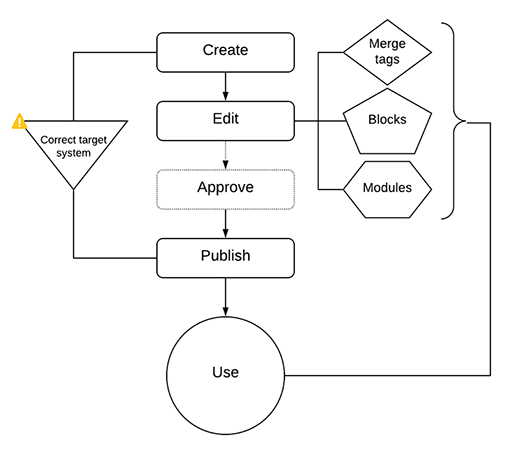
The email is created in eWizard as usual. Since the intended purpose of each email mainly depends on the end-usage destination (a system customers utilize for personalized and mass mailing), the first rule is to select the correct target system.
Carefully select the target system when creating your email – the merge tags display in the target system depends on your choice.
To illustrate this, let's take two target systems:
Veeva Vault – for rep-triggered emails or their fragments;
Salesforce Marketing Cloud – for broadcast emails.
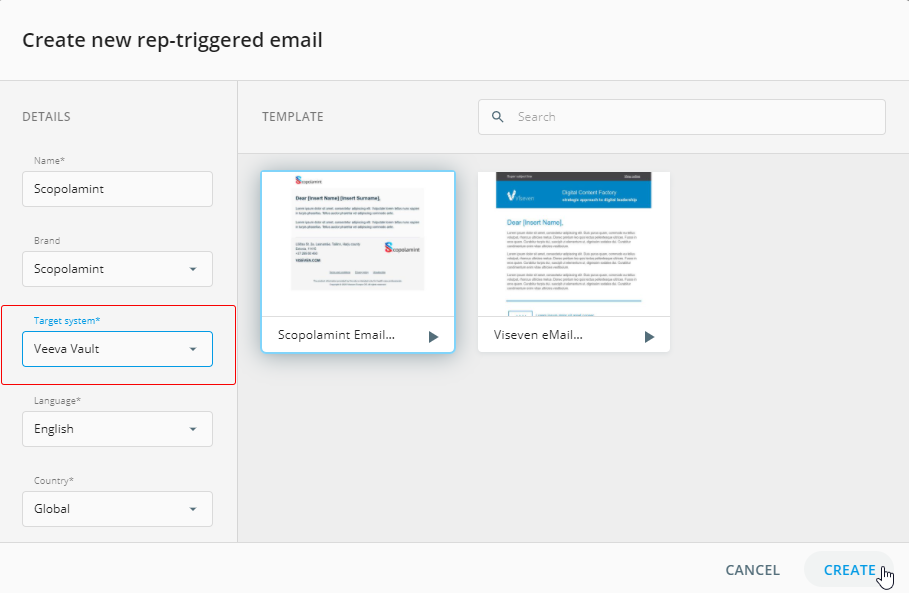
As a result, your email will contain merge tags, blocks, and modules that streamline details automatizing and analytics gathering.
Once created, your item is available in My library.
# Fill your email with content
Now it's time to customize your email (or fragment) so that it delivers the content you need to provide.
To do so, open email Editor and change your email as you see fit.
Note that email text components contain replaceable merge tags:
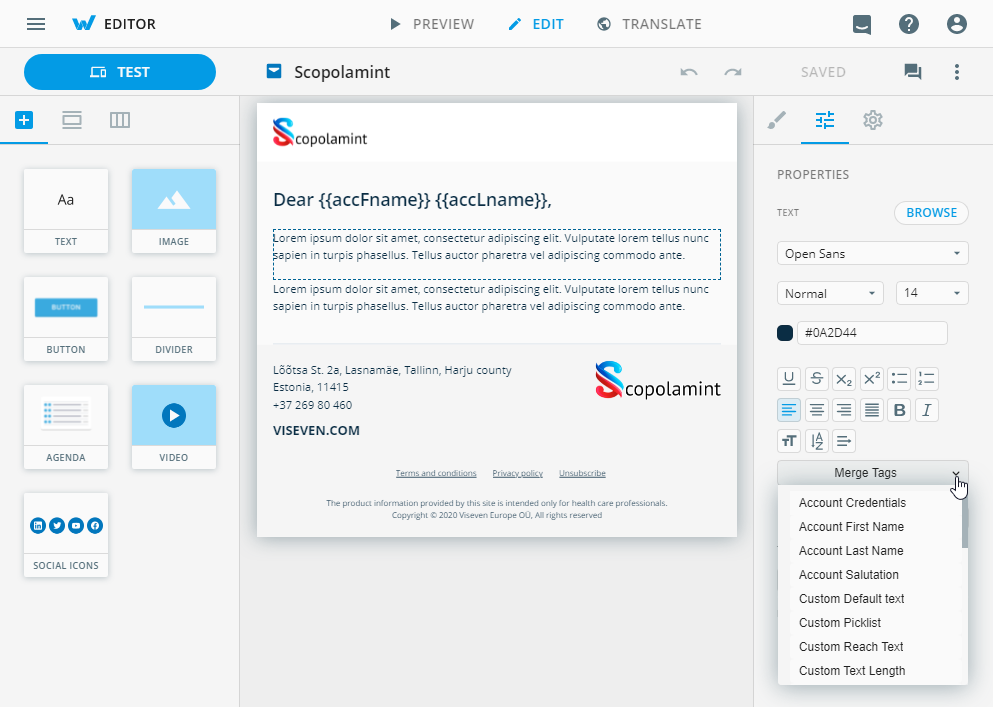
In Veeva Vault, merge tags are called configuration tokens (complete list (opens new window)), and in Salesforce Marketing Cloud, – personalization strings (complete list (opens new window)).
# Publish your email to the target system
Remember the recommendation to select the proper target system? Now publish your email there to finalize the cycle.
# Sending for approval
Before the end usage, it is commonly accepted to approve content with authorized persons. You can do this by publishing your email as PDF for MLR approvals.
This step is the same for rep-triggered and broadcast emails, since both email types follow the same procedure of approval.
Also note that even though in our example the target system for broadcast emails is Salesforce Marketing Cloud, the approval can still be performed with Veeva Vault (publishing the email as PDF).
# Sending for distribution
Once the approval is passed or when it is unnecessary, place your email to the defined target system where you can use it according to its intended purpose.
Publish your rep-triggered email to Veeva Vault as interactive, and your broadcast email – to Salesforce Marketing Cloud.
Once your email is published to the target system, you can access it following the link on the publication summary page. The published email is available for management within the target system, analytics gathering, and re-use.
# Additional points for rep-triggered emails
To link the email with the fragment, publish both to Veeva Vault and specify (also for both) the identical values in the Product field during publishing. Thus, your fragment is attached to the rep-triggered email in Veeva Vault automatically. You can find it under the email's Related email fragments section in Veeva Vault.
Once the email status is changed to Approved in Veeva Vault, it automatically syncs with Veeva CRM. All merge tags are pulled from Veeva CRM according to the recipients' valid values.